


Fast iPhone battery drain usually comes from heavy screen use, background activity, weak signal, an iOS update still finishing background tasks, or an aging battery. Start in Settings > Battery to see what power is used. After an update, wait a few days, then check Battery Health and consider service if capacity is low.
Why is my iPhone battery draining so fast? Usually, the phone itself holds the clues. This guide shows you how to read them, fix software causes first, and recognize when the battery needs service.
Key takeaways
- Check Settings > Battery before changing anything. The usage data separates app, signal, screen, and system causes.
- Battery life often dips for a few days after a major update or new-device setup, and Apple says to wait before judging it.
- Make reversible changes one at a time so you know which one helped.
- Stop using and charging any iPhone with a lifting screen or bulging case, and get professional service.
Why is my iPhone battery draining so fast? Check Settings first

Open Settings, tap Battery, and look at what power is used rather than guessing. On iOS 26 or later, the Daily Usage chart compares today with your last seven days, and App and System Activity Usage lists the biggest consumers. Apple’s usage labels point to the likely cause.
Menu names in this guide match Apple’s current documentation for iOS 26. Newer versions, including iOS 27, may label items slightly differently.
Read the Battery screen
- Open Settings > Battery.
- Look just above Daily Usage for suggestions or Insights.
- Check the Daily Usage message. It says whether you are using more, less, or about the same battery as usual.
- Tap View All Battery Usage, then tap a day’s bar for detail.
- Tap an app to see its usage type.
Apple shows these usage types for apps:
- Background Activity: Most of the app’s drain happened while it ran in the background, for example playing music or tracking location.
- No coverage or low signal: The phone spent time searching for a signal or working in a weak-signal area.
- Notifications: The app’s notifications keep waking the device.
- Connected to Charger: The app was used only while charging, so it did not drain the battery.
If your iPhone runs an older iOS version, the Battery screen may show usage by app and activity by app instead. The same logic applies.
Tell screen drain from standby drain
Compare time with the screen on against time with the phone idle. A large drain with long screen time points toward brightness, games, camera, or video. A large drain while the phone sat untouched points toward background activity, notifications, or signal.
As an independent test, not an Apple procedure, note your battery level at bedtime. Leave the phone on Wi-Fi, unplugged and untouched, then check the Battery screen in the morning. One night is not proof, because notifications and signals change from night to night. Repeat it before drawing conclusions.
Temporary drain after updates and setup
Battery life often drops for a few days after an update or new-device setup. Apple says some update tasks continue in the background after you can use the phone, and these can affect battery life and heat. If Settings > Battery shows Ongoing iOS Update or Ongoing Device Setup, wait before changing anything.
This applies to major releases such as iOS 27. Apple says the effect is temporary and normal battery life returns when the background work finishes.
If the drain continues after several days, move on to the fixes below. Installing pending app updates from the App Store is a low-risk step, because a buggy app version is one possible cause of heavy background use.
Safe fixes to try, from least risky
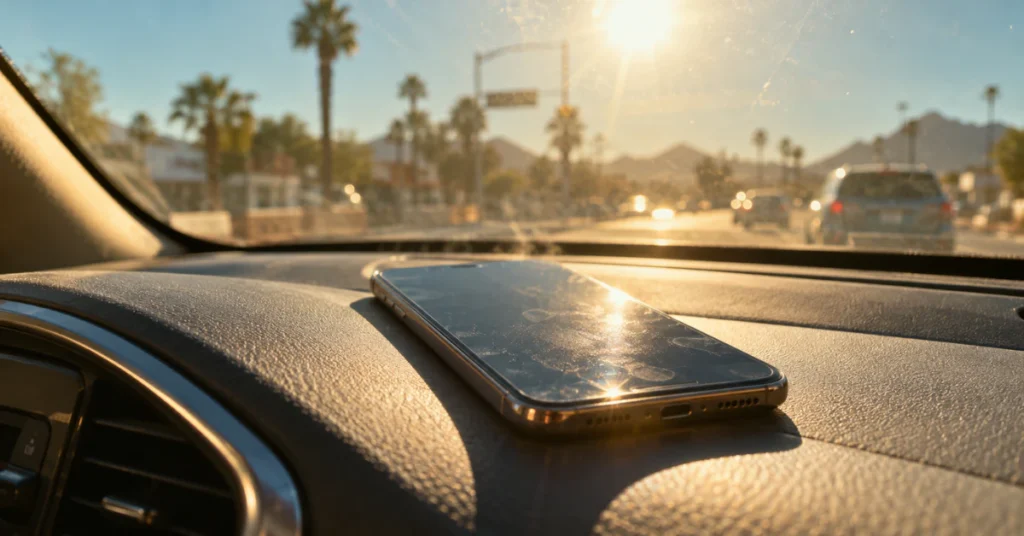
Start with reversible changes that reduce background work, then retest for a day or two. Install pending updates, restart the iPhone, and use Low Power Mode or Adaptive Power if available. Then adjust brightness, notifications, and Background App Refresh for the apps Battery settings flagged. Change one thing at a time.
Restart and install updates
- Go to Settings > General > Software Update and install any available update.
- Restart with Settings > General > Shut Down, wait a few seconds, then turn the phone back on.
- Recheck Settings > Battery after a day of normal use.
If the drain is unchanged, continue to the next step.
Use Low Power Mode or Adaptive Power
Go to Settings > Battery > Power Mode. Apple says Low Power Mode reduces or disables features such as Mail fetch, Hey Siri, Background App Refresh, and some visual effects. It switches off automatically once the phone charges above 80 percent.
Adaptive Power is available with iOS 26 or later on certain models, if available. Apple lists the iPhone 15 Pro, iPhone 15 Pro Max, iPhone 16 models, iPhone Air, iPhone 17 models, and iPhone 18 Pro models. It can turn on Low Power Mode automatically when the battery reaches 20 percent.
These modes manage symptoms. They do not repair an aging battery or a misbehaving app.
Reduce screen and notification load
Apple’s battery suggestions mention auto-brightness, auto-lock, and high brightness. Try these changes:
- Lower brightness in the Control Center.
- Set a shorter time under Settings > Display & Brightness > Auto-Lock.
- Check that Auto-Brightness is on under Settings > Accessibility > Display & Text Size.
- Open Settings > Notifications and reduce alerts from apps labeled with Notifications in Battery usage.
Limit background refresh and location
Go to Settings > General > Background App Refresh. You can turn it off, limit it to Wi-Fi, or choose Wi-Fi and mobile data. You can also switch individual apps off.
Start with apps that show Background Activity and that you rarely use. The trade-off is that their content may be stale until you open them.
Next, open Settings > Privacy & Security > Location Services. Set apps that do not need constant tracking to While Using the App or Never.
Improve signal-related drain
Apple says Wi-Fi uses less battery power than cellular, and that both use less energy with a strong signal. Connect to Wi-Fi when you can. In an area with no coverage, Airplane Mode stops the phone from searching.
On iPhone 12 models and later, if available, you can turn on 5G Auto. Open Settings > Cellular > Cellular Data Options > Voice & Data > 5G Auto. Smart Data mode then switches to LTE when 5G speed would not noticeably help.
Reset All Settings, only as a late step
If drain is steady after every step above, you can try Settings > General > Transfer or Reset iPhone > Reset > Reset All Settings. This returns settings such as Wi-Fi, keyboard, location, and privacy to defaults. It may also remove Apple Pay cards, and it does not erase your photos or apps.
Back up first. Do not choose Erase All Content and Settings for this purpose. That option deletes data and is not a reasonable early troubleshooting step.
Battery health and aging batteries
Check Battery Health when drain is steady across many days, even with light use. On iPhone 15 and later, open Settings > Battery > Battery Health. On iPhone 14 and earlier, open Settings > Battery > Battery Health & Charging. Maximum Capacity compares current capacity with a new battery, and a Service message suggests replacement.
Read Maximum Capacity and service messages
Maximum Capacity falls as the battery chemically ages, which means fewer hours between charges. A new iPhone may show slightly under 100 percent, depending on how long it sat before activation. On some models, Battery Health also shows cycle count, if available.
The percentage is an estimate, so compare it with how long your phone actually lasts. Apple also lists two messages worth knowing:
- Service: Apple suggests considering a battery replacement to restore capacity and performance.
- Unable to verify genuine Apple battery: The battery could not be verified, and the health details on screen may be inaccurate. Have Apple or an Apple Authorized Service Provider check it.
Charging habits and heat that wear batteries
Heat is the main habit-related factor Apple highlights. The iPhone is designed for ambient temperatures of 32° to 95°F (0° to 35°C), with 62° to 72°F (16° to 22°C) as the ideal range. Using or charging above 95°F can permanently reduce battery lifespan, so avoid hot cars and long periods in direct sun.
Optimized Battery Charging is on by default and reduces the time the phone spends fully charged. You can check it under Settings > Battery > Battery Health. Wireless charging, software updates, and graphics-heavy apps also warm the phone, which Apple describes as normal.
A phone that feels hot while idle and drains quickly is worth attention. Possible causes include a runaway app, charging problems, or a hardware fault. Treat it as a reason to investigate, not as proof of a fault.
When to stop and get professional service

Stop using and charging an iPhone if the screen lifts, the case bulges, or the back panel separates, because those signs can indicate a swollen battery. Do not press on it, puncture it, or try to open it. Contact Apple or an Authorized Service Provider. A Service message or steady drain after the software steps also calls for a technician.
Why battery replacement is not a beginner DIY job
iPhone batteries are lithium-ion cells. Apple states that the battery should be serviced or recycled by Apple or an Apple Authorized Service Provider. Damaging a cell during removal can cause a fire hazard, which is why beginners should not attempt it.
Independent repair guides exist for experienced repairers. Treat them as independent guidance, not official Apple procedures. A battery that cannot be verified as genuine can also trigger the Unable to verify message and unreliable health readings.
Back up your iPhone before any service visit. Apple’s one-year warranty covers service for a defective battery, in addition to rights under local consumer laws. Coverage terms and prices vary by region and plan, so confirm them before you book.
Repair or replace the iPhone
A new battery makes sense when the phone otherwise works well and the drain matches a low Battery Health reading or a Service message. Replacing the whole phone becomes more reasonable when other faults exist, such as a cracked display, storage problems, or repeated crashes. Ask for a written quote and compare it with what your phone is worth to you.
Troubleshooting table
Use the table to match what you see with a likely next step. These are possible causes, not confirmed faults.
| Symptom | Possible cause | Recommended next step |
| Drain began right after an update or setup | Background tasks still finishing | Check Battery Insights, wait a few days, then recheck |
| One app tops usage with Background Activity | App refresh, location tracking, or a buggy version | Update the app, limit Background App Refresh and location, or contact its developer |
| Low-signal or no-coverage label in usage | Phone searching for a signal | Use Wi-Fi, move to stronger signal, use Airplane Mode with no coverage, try 5G Auto if available |
| Heavy screen-on usage | High brightness, games, camera, or video | Lower brightness, shorten Auto-Lock, try Low Power Mode |
| Fast drain every day and a Service message | Aged battery | Back up and request service from Apple or an Authorized Service Provider |
| Unable to verify message | Battery not verified as genuine | Have Apple or an Authorized Service Provider inspect it |
| Hot while idle with fast drain | Runaway app, charging issue, or hardware fault | Restart, review Battery usage, contact Apple if it persists |
| Shutdowns at low charge or in the cold | Battery struggling to deliver peak power | Warm the phone, charge it, check Battery Health, get service if repeated |
| Lifting screen or bulging case | Possible swollen battery | Stop using and charging, get professional service |
Frequently asked questions
Is it normal for an iPhone to lose battery overnight?
Some drain overnight is normal because the iPhone still receives notifications, syncs, and runs background tasks. Judge it against your own baseline in Settings > Battery rather than a universal number. A sudden change, a large Background Activity entry, or a warm phone while idle deserves the diagnostic steps above.
Should I turn off Wi-Fi and Bluetooth to save battery?
Apple says Wi-Fi and Bluetooth are designed to draw minimal power when they are not connected to a network or accessory. Apple recommends keeping them on for the best experience, and some features need them. Use Airplane Mode only when you have no coverage or truly need to conserve power.
At what Battery Health percentage should I replace the battery?
Apple says iPhone 14 and earlier batteries are designed to keep 80 percent of original capacity at 500 complete charge cycles, and iPhone 15 models at 1,000 cycles. Below 80 percent, shorter life is expected. If Settings shows a Service message, consider replacement. Compare the percentage with your actual runtime.
Is it safe to charge an iPhone overnight?
Yes. Apple says the iPhone stops charging when full and resumes if the level drops below 95 percent. Optimized Battery Charging also reduces time spent fully charged. Unplugging after a full charge when practical helps lifespan, and keeping the phone out of hot places while it charges helps too.
Will erasing or restoring my iPhone fix battery drain?
Erasing the iPhone is destructive and rarely the first fix. It cannot reverse chemical aging of the battery, and it deletes data unless you restore a backup. Try the settings checks, Battery Health, and Apple Support first. If an erase is ever advised, make a full backup and confirm it completed.
Why does my iPhone battery drain faster in cold weather?
Cold temperatures can temporarily shorten battery life, and Apple says normal performance returns when the battery warms up. Unexpected shutdowns are more likely with a low charge, cold conditions, or an older battery. Let the phone warm at room temperature, then recheck. Repeated shutdowns at moderate temperatures deserve a Battery Health check.
Conclusion
Start with Settings > Battery, because it shows whether apps, signal, screen use, or system activity is responsible. Give a recent update a few days, then apply reversible fixes one at a time. Check Battery Health if drain is steady, and book service through Apple or an Authorized Service Provider when it shows Service or the phone runs hot. Stop using and charging any iPhone with a bulging case.
Disclaimer
This guide offers general information for iPhones running recent iOS versions, and it may not match your exact model, iOS version, or region. Back up your data before changing settings, resetting, or sending the phone for service. Seek help from Apple or an Authorized Service Provider for hardware faults, and never open or press on a swollen battery.
