
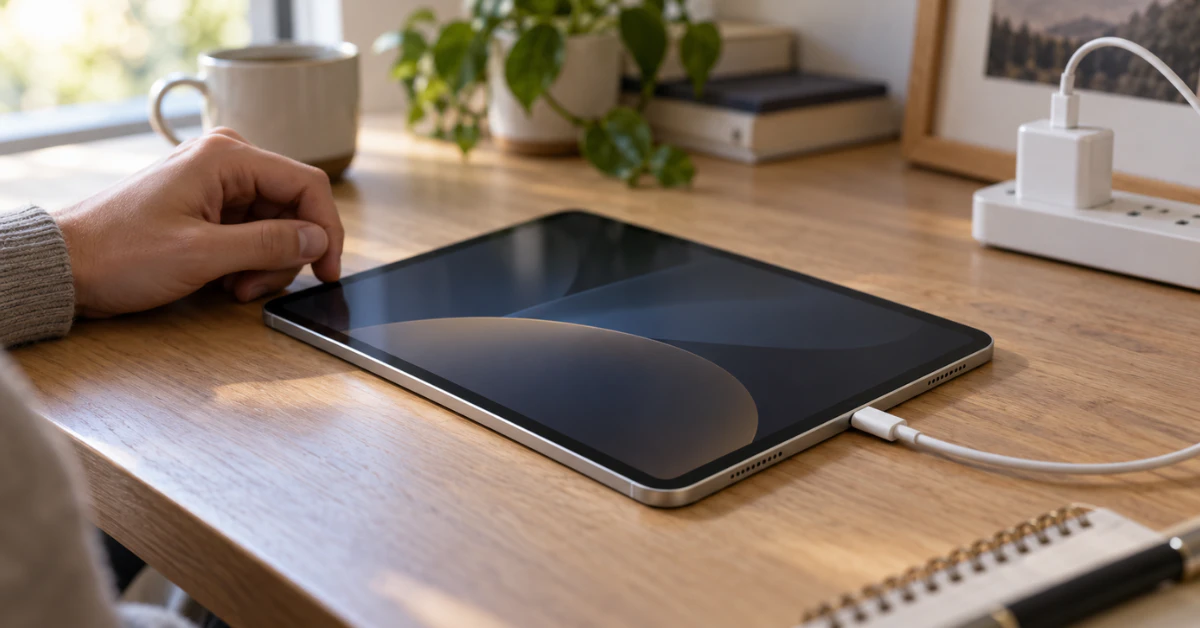

If your iPad is not charging, first confirm the cable and adapter are firmly connected to a working outlet, then try a different cable or adapter. Check that the iPad is not too hot or too cold, then force restart it. If nothing responds after about an hour on power, contact Apple or an authorized service provider.
An iPad that refuses to charge is usually caused by something simple, such as a worn cable, a weak power source, or extreme temperature. This guide helps you narrow down the cause, starting with the safest checks. You will also learn when to stop and hand the problem to a professional.
Key takeaways
- Change only one thing at a time (outlet, cable, adapter) so you can tell which part is failing.
- Apple recommends the cable and adapter that came with your iPad, or certified alternatives that meet safety standards.
- Temperature can pause charging. A device that is too hot or too cold may charge slowly or not at all.
- Stop charging and seek service if you see swelling, heat, burning smells, or liquid damage.
Why your iPad is not charging: symptoms and likely causes
Different symptoms point to different problems. Matching what you see to the right pattern saves time and prevents unnecessary repairs.
Signs that charging is working
According to Apple, a charging iPad shows a lightning bolt on the battery icon in the status bar, or a large battery icon on the Lock screen. If you see either one, power is reaching the iPad. A battery percentage that rises slowly can still be normal, especially during heavy use.
Common symptom patterns
These patterns are possibilities, not confirmed faults.
- No charging icon at all: The outlet, adapter, cable, or port may not be delivering power.
- Icon appears, but the percentage barely moves: A low-power adapter or computer port, heavy use while charging, or heat may be limiting the charge rate.
- Charges only when the cable is held at an angle: The cable connector or the iPad’s port may be worn, loose, or blocked with lint.
- The screen stays black even on power: The battery may be deeply discharged, the iPad may be frozen, or there may be a hardware fault.
- A “Charging On Hold” message: Apple says this means the device is temporarily too hot or too cold to charge.
How to fix an iPad that is not charging
Work through these steps in order, from least risky to more involved. None of them erases data.
Step 1: Check the charging icon and power source
Connect the iPad to a USB charging cable, preferably the one that came with it. Then plug the cable into one of the power sources Apple lists:
- A USB power adapter plugged into a working outlet, preferably the adapter that came with your iPad.
- A USB port that supports USB 2 or later, on a computer that is on and not asleep.
- A powered USB hub, docking station, or other Apple-certified accessory.
- A compatible Magic Keyboard connected to a working power source.
This isolates the power source. If the iPad charges from one source but not another, the first source is the likely problem. If it charges from none of them, move on.
Step 2: Swap the cable and adapter one at a time
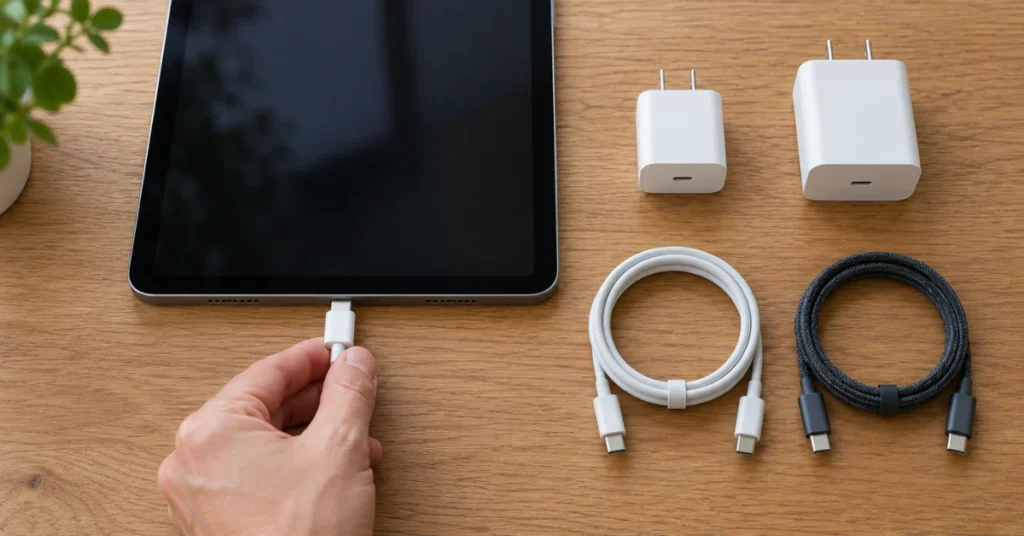
Try a different cable first, then a different adapter, changing only one item per test. Also test a different wall outlet to rule out a dead socket.
If the iPad charges after swapping the cable, the original cable is the likely culprit. If it charges with a different adapter, the original adapter is the more likely problem. If you use third-party accessories, choose Made for iPhone cables and adapters that meet applicable safety standards. Apple warns that adapters that don’t meet those standards could pose a risk of injury. Stop using any cable with frayed insulation or bent connectors.
Step 3: Check the temperature
Apple says iPhone and iPad are designed for ambient temperatures between 0° and 35° C (32° to 95° F). Above that range, charging slows or stops. In very cold conditions, the device might not charge or could stop charging.
Move the iPad to a room-temperature spot, away from direct sunlight, heaters, or a parked car. Wait a while, then reconnect it. If charging resumes, temperature was the cause.
Step 4: Inspect the charging port safely
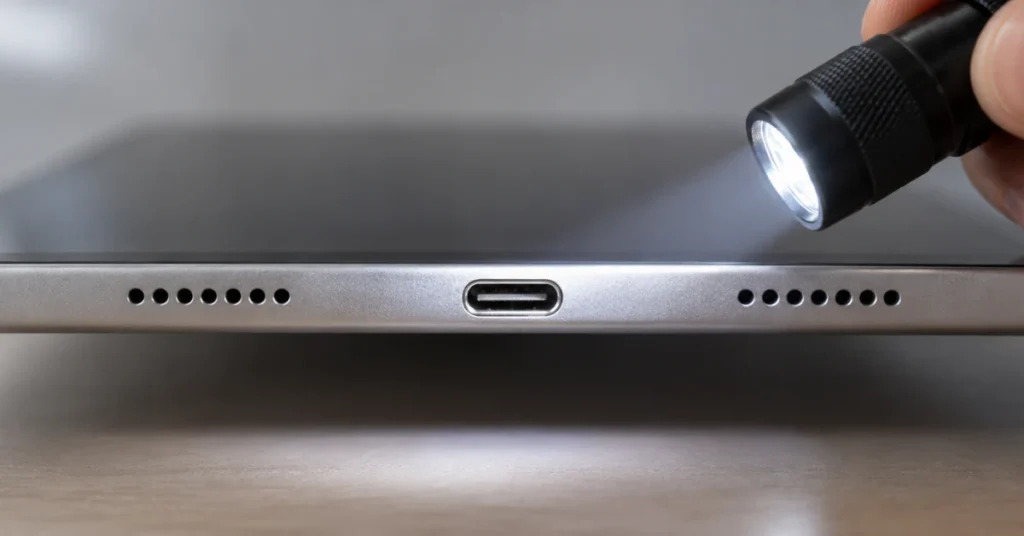
This step is independent guidance, not an Apple procedure from the pages reviewed. Disconnect everything and shine a flashlight into the port. Visible lint or debris can stop the connector from seating fully.
If you see lint, turn the iPad off. Remove it gently with a soft, dry, non-metal tool. Never use liquids, metal pins, or anything sharp, and never force anything into the port. If the port looks bent, corroded, or damaged, stop and see the professional repair section below.
Step 5: Force restart the iPad

A force restart is not a factory reset and does not erase your content. The steps depend on your model.
For an iPad without a Home button:
- Press and quickly release the volume button closest to the top button.
- Press and quickly release the volume button farthest from the top button.
- Press and hold the top button until the iPad restarts and the Apple logo appears.
For an iPad with a Home button: Press and hold both the top (or side) button and the Home button until you see the Apple logo.
If the iPad restarts and then charges, a temporary software glitch was the likely cause. If it still does not respond, continue.
Step 6: Leave it on a known-good charger
Apple notes that an iPad that won’t turn on may need to charge for up to an hour. Use the best cable and adapter combination you have, and keep the iPad at room temperature. After about an hour, try the force restart again while it remains connected.
If the screen stays black and there is still no charging icon, a hardware fault becomes more likely. Do not try a factory reset or restore as a charging fix, because neither repairs a faulty cable, port, or battery.
Model differences that affect charging
Not every adapter suits every iPad. Apple’s adapter overview lists 20W, 18W, 12W, and 10W adapters in the box, depending on the model. In some countries and regions, certain newer models ship without an adapter.
Experienced Apple Support Community contributors also note that older 5W iPhone adapters can charge an iPad very slowly or not at all. Computer ports often supply less power than a wall adapter, so charging from one may be slower. Check your iPad’s technical specifications if you are unsure which adapter fits.
Also match the cable to your iPad’s port type, USB-C or Lightning, and use a good-quality cable with it.
When to stop and get professional help
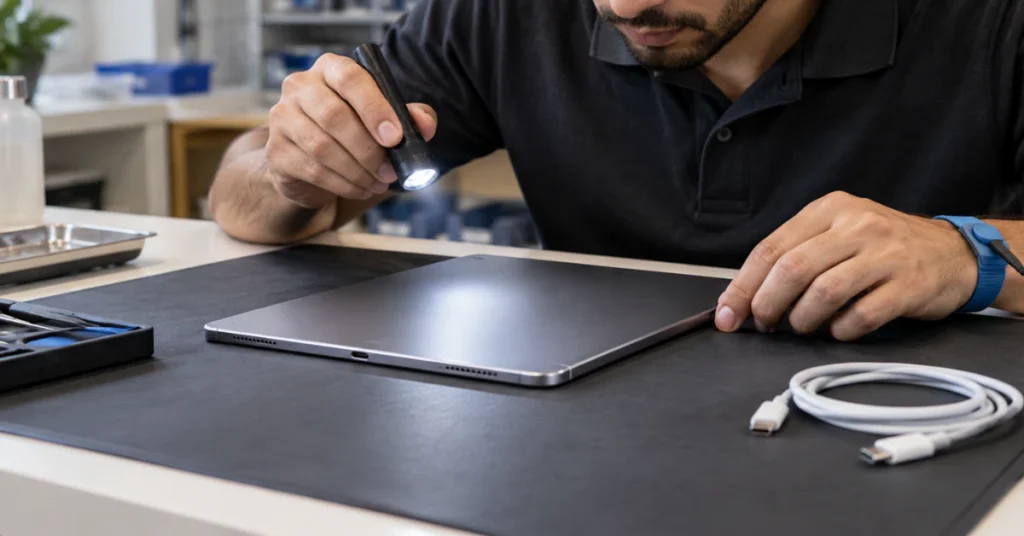
Some symptoms mean the problem is beyond safe home troubleshooting. Stop and contact Apple or an authorized service provider when these appear.
Warning signs that mean stop charging
- The case, screen, or back of the iPad looks swollen or is lifting.
- The iPad or adapter becomes unusually hot, or you smell burning.
- You know or suspect liquid has entered the iPad.
- The charging port is visibly bent, burned, or corroded.
Unplug the iPad, do not press on a swollen area, and never open the iPad or try to puncture or bypass the battery. Lithium-ion batteries can be hazardous when damaged.
Repair versus replacement
Replacing a charging port or battery is not a beginner DIY job. These parts sit behind adhesive and delicate display connections, and mistakes can damage the battery or screen. Check your warranty or service plan before approving any work, because unauthorized repairs may affect coverage.
If the iPad turns on at all, back it up first. Then weigh these factors when deciding whether to repair or replace:
- The age of the iPad and how well it still meets your needs.
- Whether other problems exist, such as a cracked screen or slow performance.
- The repair quote compared with the cost of a replacement.
- Whether the device still receives software updates.
Troubleshooting table
| Symptom | Possible cause | Recommended next step |
| No charging icon | Faulty cable, adapter, or outlet | Swap one component at a time and try another outlet |
| Charges slowly | Low-power adapter or computer USB port | Use a wall adapter suited to your model |
| “Charging On Hold” message | iPad too hot or too cold | Move it to room temperature and wait |
| Charges only at certain cable angles | Worn cable or debris in the port | Try another cable, then inspect the port carefully |
| Black screen, no response | Deeply discharged battery or frozen iPad | Force restart, then charge for up to an hour |
| Swelling, heat, or burning smell | Possible battery fault | Unplug and contact Apple or an authorized provider |
Frequently asked questions
Why is my iPad plugged in but not charging?
Several causes are possible, and none can be confirmed from the symptom alone. The most common are a faulty cable or adapter, a weak power source, extreme temperature, or debris in the port. Swap one accessory at a time, check the temperature, then force restart. If every combination fails, a technician may need to inspect the port or battery.
Can a computer USB port charge my iPad?
Often yes, with conditions. Apple says the port should support USB 2 or later, and the computer must be on and not asleep. Computer ports can supply less power than a wall adapter, so charging may be slower. If the iPad does not charge from a computer, test a wall adapter before assuming a fault.
How long should I charge a dead iPad before deciding it’s faulty?
Apple says an unresponsive iPad might need to charge for up to an hour. Use a known-good cable and wall adapter, and keep the iPad at room temperature. If the screen stays black after that and a force restart does not help, contact Apple or an authorized service provider.
Is it safe to use a third-party charger?
Apple says you can charge with Made for iPhone or other third-party cables and adapters that comply with applicable regulations and safety standards. Adapters that don’t meet those standards might pose a risk of injury. Buy from reputable sellers, and stop using any adapter that overheats or looks damaged.
Should I factory reset an iPad that won’t charge?
Not as a first step. A factory reset erases data and cannot repair a damaged cable, port, or battery. Apple’s charging guidance starts with power sources, accessories, temperature, and a force restart. Consider a reset or restore only if Apple Support or a technician recommends it, and back up first if the iPad turns on.
What does “Charging On Hold” mean on an iPad?
Apple says this message means the device is temporarily too hot or too cold to charge. Move the iPad to a room-temperature spot, away from direct sunlight and heat sources, and give it time. Charging should resume once the temperature returns to normal.
Can I fix a damaged charging port at home?
Gently removing visible lint is reasonable, but replacing a charging port or battery is not beginner DIY work. These repairs involve adhesives, delicate cables, and lithium-ion batteries that can be damaged. Choose Apple or a qualified technician, and ask what your warranty or service plan covers before approving any repair.
Conclusion
Start with the simplest checks: a working outlet, a different cable, a different adapter, and a comfortable temperature. Then force restart the iPad and let it charge for up to an hour. If it still shows no sign of life, or you notice swelling, heat, or liquid damage, stop and contact Apple or an authorized service provider.
Disclaimer
This guide offers general troubleshooting information and cannot diagnose your specific iPad from a distance. Back up your data whenever the iPad turns on, and avoid opening the device or attempting battery or port repairs yourself. If you are unsure or notice any safety warning signs, consult Apple or a qualified technician.
