
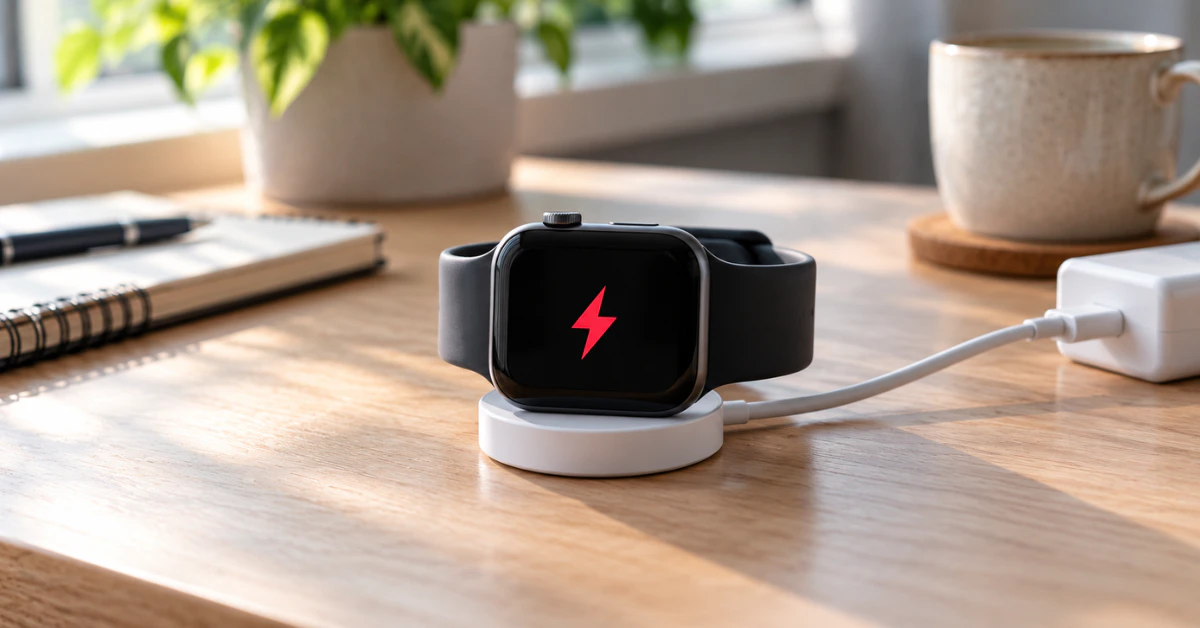

If your Apple Watch isn’t charging, clean the watch back and the charger, then seat the watch so the magnets align. Use the cable that came with it, plugged fully into a power adapter and outlet. Leave it connected for up to 30 minutes. If nothing appears, try a different cable and adapter, then force restart.
A watch that won’t charge is usually a small contact, cable, or power-source problem rather than a dead battery. This guide goes from the safest checks to the point where Apple service is the right call. It also explains what each charging symbol means.
Key takeaways
- A red lightning bolt means the battery is too low to turn on. A watch in this state can take up to 30 minutes on the charger before it responds.
- Change one thing at a time (position, cable, adapter, outlet) so you can tell which part is failing.
- A force restart is a normal troubleshooting step, but unpairing or erasing the watch is not part of Apple’s charging guidance.
- Swollen casing, heat, liquid, or a damaged watch or charger means you should stop and contact Apple or an authorized provider.
What your charging symbols mean
Apple’s guidance depends on what the screen shows, so start by reading it correctly.
- Red lightning bolt: The watch doesn’t have enough battery power to turn on.
- Red lightning bolt inside a ring: The watch is connected to its cable and is receiving power. It still needs time before it can turn on.
- Blank screen, even after pressing the side button: The battery may be very low, or the watch isn’t receiving power. Apple says to charge it for up to 30 minutes before it will turn on.
- Charging symbol on the watch face: Charging has begun.
- Yellow charging symbol: The watch is in Low Power Mode. Apple says this mode turns off once the battery reaches 80 percent.
None of these symbols alone proves a fault. A red bolt, for example, is a low-battery signal and does not by itself point to a broken watch.
Why your Apple Watch is not charging
Several causes look the same on screen, so treat the list below as possibilities, not diagnoses.
- Poor alignment: The magnetic charger may not be seated on the back of the watch.
- Dirty or covered contact surfaces: Residue, or leftover plastic wrap on a new charger, can interrupt charging.
- Cable or adapter problems: The cable, the USB power adapter, or the outlet may be at fault.
- An accessory issue: A third-party charger, dock, or stand may not connect reliably.
- A deeply drained battery: A watch that sat unused for a long time may need extra time to respond.
- A hardware fault: The watch’s charging components or battery may have failed. This is only likely once the simpler causes are ruled out.
Apple Watch not charging: step-by-step fixes
Work through these in order. They run from least risky to most involved, and none requires opening the watch.
Fix 1: Check the cable, adapter, and outlet
Plug the charging cable all the way into the USB power adapter. Then plug the adapter all the way into a working outlet. A half-seated connector is a common reason for no response.
Use the Apple Magnetic Charging Cable or USB-C Magnetic Fast Charging Cable that came with your watch. If another outlet or adapter changes the result, you’ve found the weak link. If not, move on.
Fix 2: Clean the watch and charger, then reseat
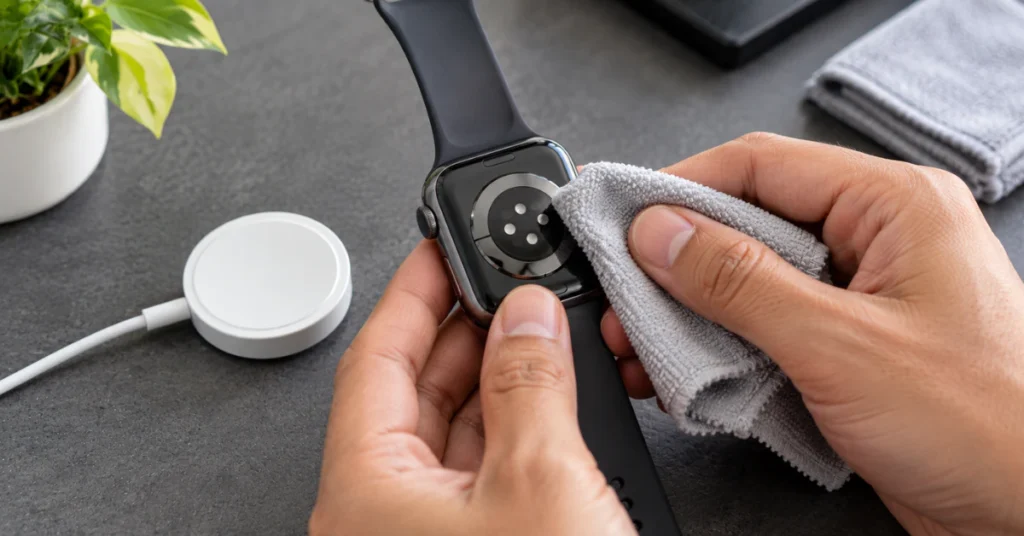
Wipe the back of the watch and the charger’s surface. Remove any plastic wrap from both sides of the charger. Moisture and residue can get in the way, so make sure both are dry.
Then place the back of the watch on the charger. The concave end should snap on magnetically. When the magnets align, a lightning bolt should appear. If it still doesn’t, reposition once more before moving on.
Fix 3: Give a drained watch time
If the screen is blank or shows the charging cable icon, the battery may be very low. Apple says to wait up to 30 minutes for the lightning bolt to appear. Leave the watch undisturbed during that time.
If a symbol appears and the watch turns on, the problem was a drained battery. If the screen is still blank after 30 minutes, go to the next fix.
Fix 4: Swap one component at a time
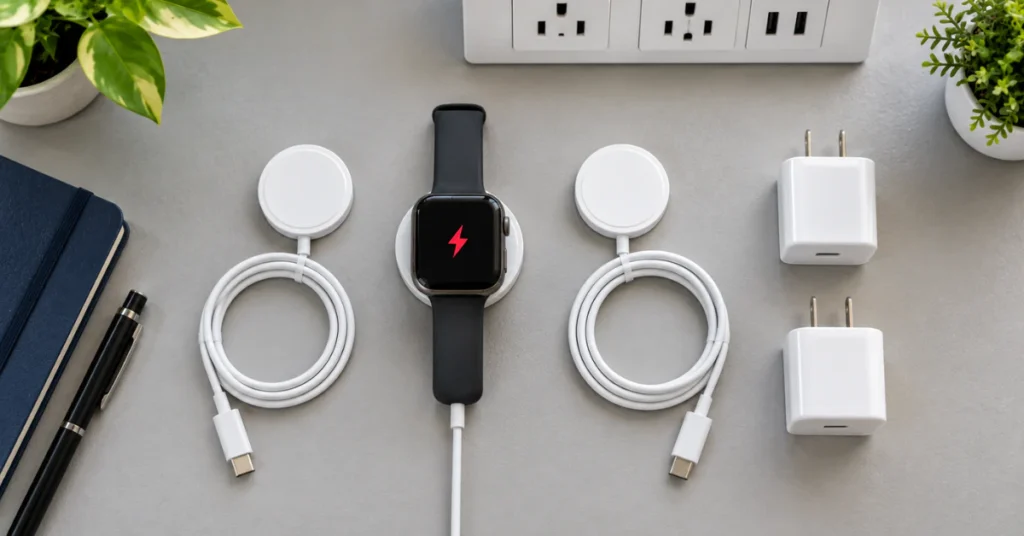
Try a different Apple Watch Magnetic Charging Cable or USB-C Magnetic Fast Charging Cable. Then try a different USB power adapter. Change only one item per attempt.
Here is what the results suggest:
- Works with a different cable: The original cable is the likely fault.
- Works with a different adapter or outlet: The power source is the likely fault.
- Still fails with known-good parts: The watch itself becomes a stronger suspect. That is still not a confirmed fault.
If a friend has a second Apple Watch, you can also check whether your charger works on it. Treat that as a helpful clue, not proof.
Fix 5: Force restart the watch
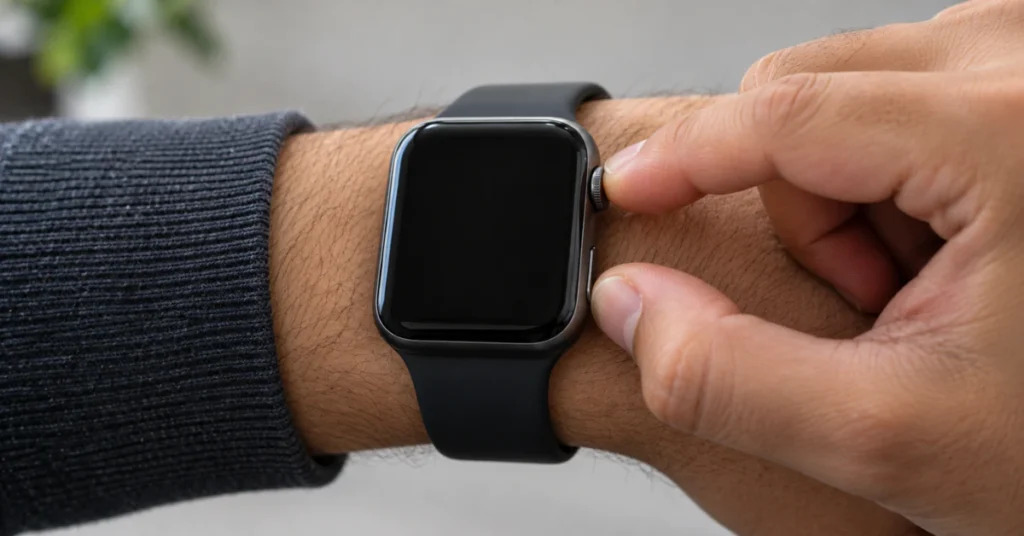
If the watch still won’t charge, press and hold both the side button and the Digital Crown for at least 10 seconds, or until the Apple logo appears. Apple lists this as part of its charging guidance.
A force restart is different from erasing or unpairing the watch. It doesn’t remove your data or your pairing. After the Apple logo appears, put the watch back on the charger and check for the charging symbol.
Fix 6: Adjust for your model and charging accessory
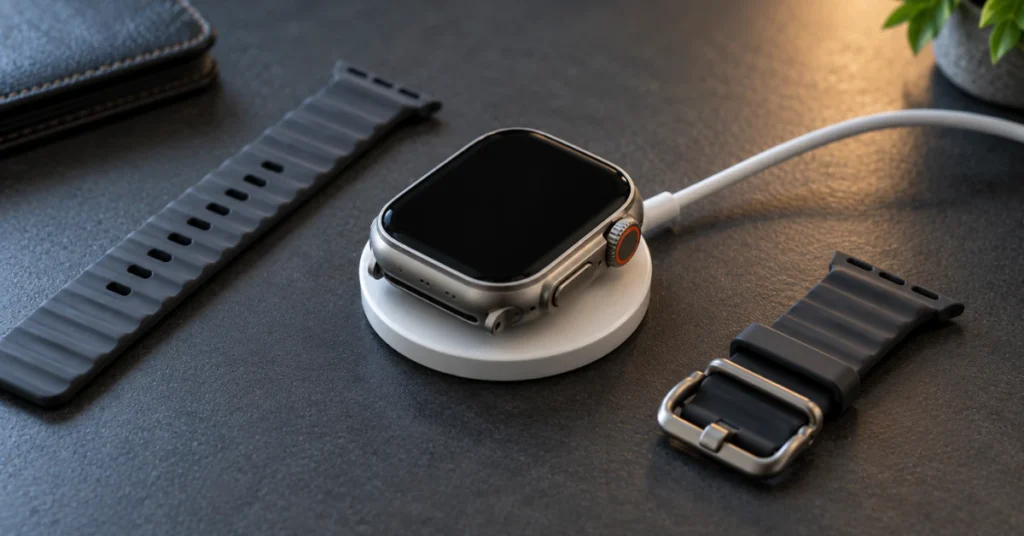
Some setups need small changes:
- Larger models on a dock: Apple says that with the Apple Watch Magnetic Charging Dock or the MagSafe Duo Charger on a 44mm, 45mm, or 49mm model, you may need a different angle. Laying the charger completely flat can also help.
- Apple Watch Ultra or later: If the watch won’t connect reliably even when the charger is flat, try removing the band before placing it on the charger.
- Chargers bought in China or Indonesia: A WPT-compliant charger used with an incompatible watch shows the message “Unable to charge. This is a country-specific charger. It is incompatible with this Apple Watch.”
Apple also recommends the included magnetic charger for best results. Third-party chargers are an option, but if one misbehaves, test with the included cable before blaming the watch.
When the watch charges but seems wrong
Not every odd charging behavior is a fault. Two normal behaviors are worth knowing.
Charging seems to pause around 80 percent
Apple Watch can use Optimized Battery Charging to reduce battery aging. It learns your daily charging routine and may wait to finish charging past 80 percent until you need the watch. On current watchOS, you can review this in Settings > Battery > Battery Health, where the option appears as Optimized Battery Charging or Optimized Charge Limit. Menu names vary by watchOS version and model, so look for the option if available.
The charging symbol is yellow
A yellow symbol means Low Power Mode is on, which is expected behavior. Per Apple, the mode turns off after the battery reaches 80 percent.
Battery capacity has dropped
If the watch charges but runs down fast, check Settings > Battery > Battery Health (if available on your model and software). It shows capacity relative to when the watch was new. A drained-too-quickly problem is a different issue from a watch that won’t charge at all, so don’t mix the two diagnoses.
Troubleshooting table
| Symptom | Possible cause | Recommended next step |
|---|---|---|
| Blank screen on the charger | Misaligned magnets, dirty surfaces, plastic wrap, cable or adapter fault, very low battery | Clean, reseat, wait up to 30 minutes, then swap the cable and adapter |
| Red lightning bolt | Battery too low to turn on | Connect to the charger and wait |
| Red bolt inside a ring | Receiving power, not enough charge yet | Wait up to 30 minutes |
| Yellow charging symbol | Low Power Mode | No action needed; it ends at 80 percent |
| Charging slows near 80 percent | Optimized Battery Charging | Review the battery settings if available |
| Fails only with a third-party charger | Accessory compatibility | Test the included cable; contact the accessory maker |
| “Unable to charge” country-specific message | WPT-compliant charger with an incompatible watch | Use a compatible charger |
| Unreliable on a dock (larger or Ultra models) | Magnet alignment or band interference | Adjust the angle, lay it flat, or remove the band on Ultra or later |
| Nothing works after all steps | Possible watch or charger hardware fault | Contact Apple or an authorized provider |
When to stop and get service
Stop troubleshooting if you notice any of the following:
- The watch feels unusually hot while charging.
- The case looks swollen or the screen is lifting.
- There is visible liquid intrusion, a cracked screen or case, or a damaged band.
- The cable or charger is frayed or damaged.
Apple’s safety guidance says not to use a damaged watch, and not to use damaged cables or charge when moisture is present. Remove the watch from the charger and unplug the power adapter first.
If every safe step fails, Apple’s guidance points to service. Contact Apple Support or an Apple Authorized Service Provider. Check your warranty or AppleCare coverage first, because terms vary by region. Ask what happens to your data. Apple notes you may receive a replacement watch during battery service, so make sure your paired iPhone is backed up.
Repair or replace the battery yourself?
Apple states not to open the watch or try to repair it yourself. It also says not to replace the battery yourself, because doing so may damage the battery and could cause overheating and injury. The lithium-ion battery should be serviced only by Apple or an authorized service provider.
Independent repair guides exist. Even so, opening a sealed watch can break its seals and affect water resistance. It is not a beginner repair, so this guide doesn’t recommend it. If you’re deciding between repair and replacement, base it on the watch’s age, your coverage, and the quote you receive from a provider. Don’t assume a cost in advance.
Preventing charging problems
- Keep the charger and the watch back clean and dry.
- Plug the cable and adapter in fully before using the charger.
- Charge in a well-ventilated area, not under a pillow or blanket.
- Don’t sleep with the watch on a charger or place the charger against your body.
- Use the included charger, or a compliant third-party one from a reputable maker.
Frequently asked questions
Why does my Apple Watch show a red lightning bolt and not turn on?
A red lightning bolt means the watch doesn’t have enough battery power to turn on. When you connect the cable, the bolt changes to one inside a ring. Apple says you may need to charge for up to 30 minutes before the watch will turn on, so wait before assuming a fault.
How long should I charge before deciding something is wrong?
Apple’s guidance is to leave the watch connected for up to 30 minutes, since a drained watch can take that long to show the lightning bolt. If nothing appears after that, check alignment, then try a different cable and adapter. Persistent failure after those swaps suggests a need for service.
Why does my Apple Watch stop charging at 80 percent?
This can be Optimized Battery Charging working as designed. Apple says the watch learns your routine and may delay finishing the charge past 80 percent until you need it. On watchOS versions that offer it, check Settings > Battery > Battery Health to see whether the feature is turned on.
Can I use a third-party charger?
Apple says you can use third-party chargers and adapters that comply with USB 2.0 or later and applicable safety standards. Apple still recommends the included magnetic charger for best results. If a third-party charger fails, test with the included cable first, then contact the accessory’s manufacturer.
Will a force restart erase my Apple Watch?
A force restart is a restart, not an erase. Hold the side button and Digital Crown for at least 10 seconds, or until the Apple logo appears. Unpairing or erasing the watch is a separate action, and it isn’t part of Apple’s charging guidance.
Can I replace the Apple Watch battery myself?
No. Apple says not to open the watch or replace the battery yourself, because damaging a lithium-ion battery may cause overheating and injury. It states that battery service should be done only by Apple or an authorized service provider.
Conclusion
Most charging failures come down to alignment, a dirty contact surface, a cable or adapter issue, or a watch that simply needs time. Start with the cable connection and cleaning, give a drained watch up to 30 minutes, swap one component at a time, and then force restart. If symptoms persist, or you notice heat, swelling, damage, or liquid, stop and contact Apple or an authorized provider.
Disclaimer
This guide offers general troubleshooting information and can’t diagnose your specific watch. Back up your paired iPhone before any service, and don’t open the watch or attempt a battery replacement. If you see heat, swelling, damage, or liquid, stop using the watch and seek professional help.
