
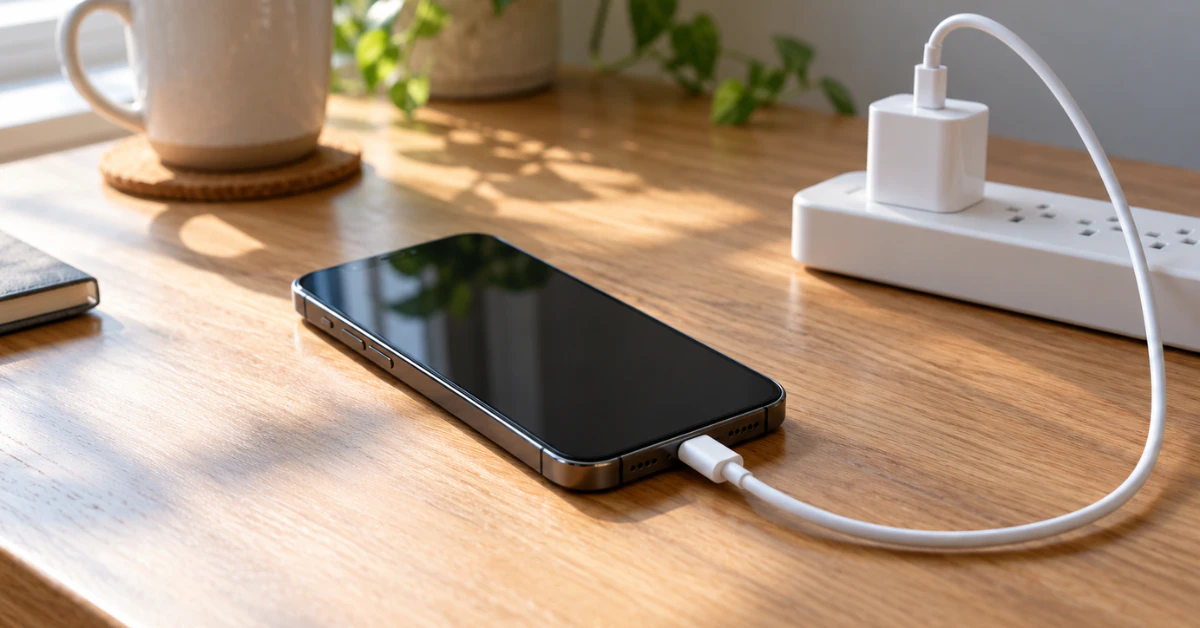

Start by checking the cable, adapter, and outlet for damage, then clear visible lint from the charging port and restart your iPhone. Charge for 30 minutes, force restart if needed, and charge another 30 minutes. If it still won’t charge, get service. If a liquid alert appears, let the port dry first.
An iPhone that won’t charge is usually caused by something simple, such as a worn cable, a dirty port, or heat. This guide helps you tell the difference between a phone that won’t charge, one that charges slowly, and one that stops at 80 percent. It also explains when to stop troubleshooting and book a repair.
Key takeaways
- Test one variable at a time (outlet, adapter, cable), so you know which part is at fault.
- A message such as “Liquid Detected” or “Accessory Not Supported” is a different problem from a phone that shows nothing at all.
- Stopping at 80 percent is often normal behavior, not a fault.
- Do not keep charging a phone with a swollen or bulging case. Do not open it yourself.
Work out which problem you have
The right fix depends on what your iPhone does when you plug it in. Match your symptoms below before changing any settings.
The iPhone shows no sign of charging
Normally a lightning bolt appears inside the battery icon, or a large battery icon appears on the Lock Screen. If neither appears after a few minutes, power may not be reaching the phone. The cause could be an accessory, the port, a software hang, or a hardware fault.
The iPhone charges slowly or stops partway
Charging may pause or slow when the phone is warm or cold. On models that support it, Optimized Battery Charging or a Charge Limit can also hold the battery below 100 percent. These behaviors are designed features, not faults.
The iPhone shows an alert message
Alerts such as “Liquid Detected in Connector,” “Charging Not Available,” or “Accessory Not Supported” point to a specific cause. Skip ahead to the matching section instead of working through the general steps.
Fixes to try first when your iPhone is not charging
These steps are ordered from least to most involved. They follow Apple’s published guidance, with independent tips marked as such. Try charging after each step.
Test the power source
Plug the iPhone into a wall outlet using the adapter that came with it, or one you know works. Apple lists a computer, a power accessory, or a wall outlet as valid sources. If the outlet or adapter is the culprit, a different outlet should make the problem disappear.
Inspect the cable and adapter
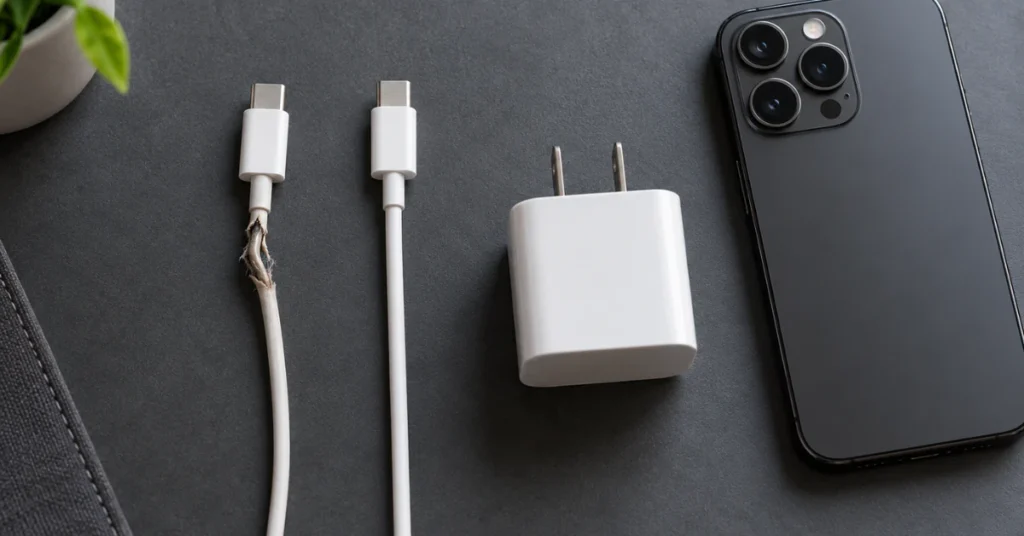
Look for breakage, fraying, or bent prongs. Do not use damaged accessories, because they can be unsafe as well as ineffective. Make sure every connection is firm, then try a known-good cable.
If a different cable works, the first cable was the likely cause. If nothing changes, move on to the next step.
Restart the iPhone
A normal restart can clear a temporary software hang that stops the phone recognizing a charger. Restart it, then plug it in again. If the screen stays black, skip to the force restart below.
Look for debris in the charging port
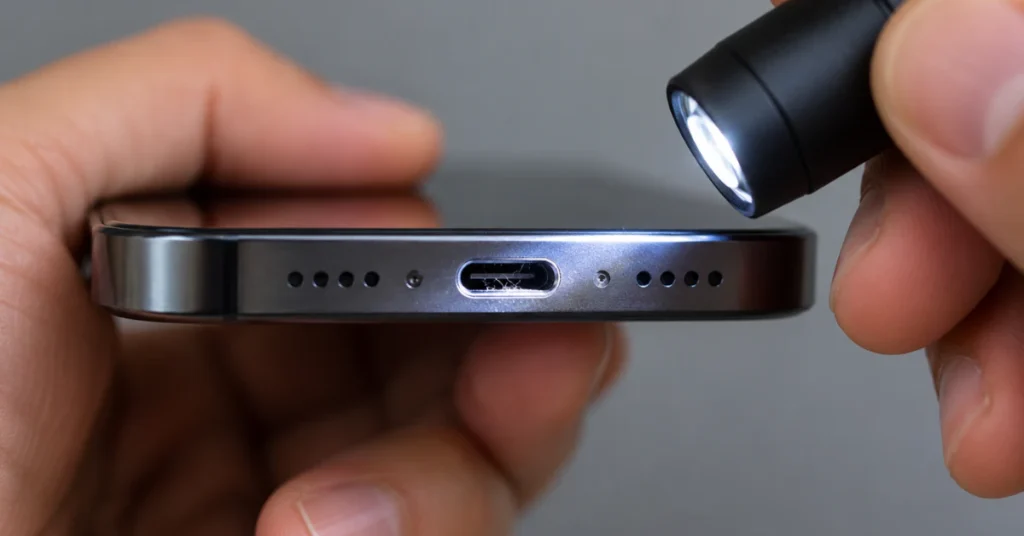
Use a flashlight to look into the port at the bottom of the iPhone. Pocket lint can be packed into the port and keep the cable from seating fully. Apple’s charging guidance says to remove any debris and then plug the cable in firmly.
Apple does not name a specific tool. Apple’s general cleaning guidance advises against compressed air, and its liquid guidance warns against cotton swabs and paper towels inside the connector. Many independent repair sources suggest a wooden or plastic toothpick, used very gently. That tip is not an Apple procedure. The port contains delicate contacts, so never use metal, and stop if you meet resistance.
Charge for half an hour, then force restart
Leave the phone connected for 30 minutes before judging the result. A deeply drained battery can take a while to show any sign of life. If the screen is still black or only shows a battery icon, force restart:
- On iPhone 8 or later and iPhone SE (2nd generation and later), press and quickly release Volume Up.
- Press and quickly release Volume Down.
- Press and hold the Side button until the Apple logo appears.
Older models use different button combinations. On iPhone 7 and 7 Plus, hold the Side button and Volume Down together. On iPhone 6s or earlier and the 1st-generation iPhone SE, hold the Side (or Top) button and the Home button together. Then charge for another 30 minutes.
If the phone turns on but won’t charge, check that iOS is up to date under Settings > General > Software Update. Apple lists the latest iOS as a step for unsupported-accessory alerts. An iPhone that still shows nothing after these steps needs service, not more home experiments.
If your iPhone stops charging at 80 percent
Stopping at 80 percent does not automatically mean something is broken. Optimized Battery Charging, available with iOS 13 and later, can delay charging past 80 percent when your iPhone expects to stay plugged in for a long time. It is on by default and learns your routine over time.
Heat is another common reason. If the battery gets too warm, software may limit charging above 80 percent until the phone cools. Move the iPhone and charger somewhere cooler and remove a thick case if the phone feels hot.
Check your settings if the behavior is unexpected:
- iPhone 15 and later: Open Settings > Battery > Charging. Look at the Charge Limit, which can be set between 80 and 100 percent. Optimized Battery Charging is available when the limit is 100 percent.
- iPhone 14 and earlier: Open Settings > Battery > Battery Health & Charging and check whether Optimized Battery Charging is on.
Apple also says that temperatures outside the 0° to 35°C (32° to 95°F) range can change charging behavior. A cold phone may not charge at all. A “Charging On Hold” message on the Lock Screen means the phone is temporarily too hot or too cold, and it should resume when the temperature normalizes.
If your iPhone shows a liquid or accessory alert
Liquid detected in the charging port
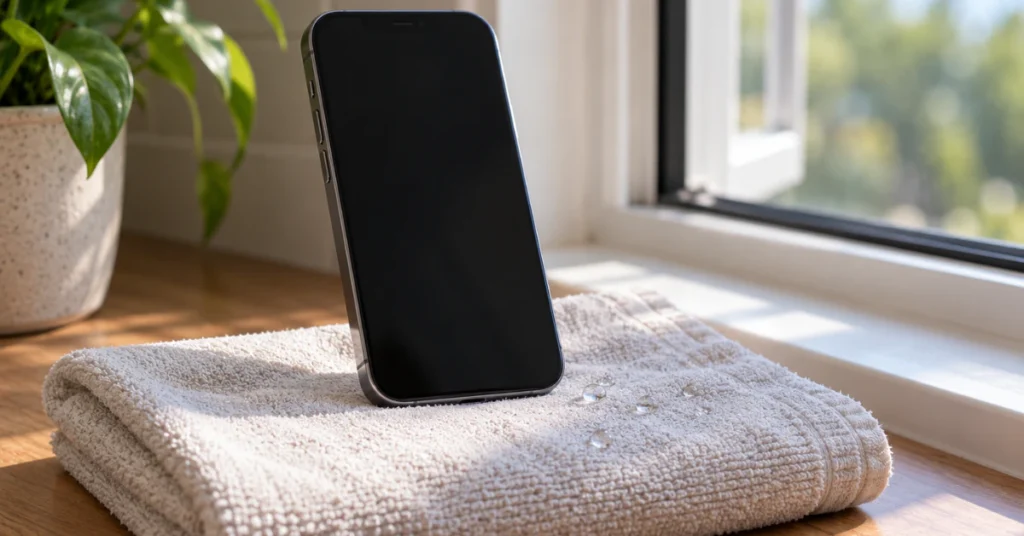
Liquid detection is available on iPhone XS, XS Max, XR, and later. When it triggers, charging is blocked to protect the contacts. Charging a wet connector can corrode the pins and cause permanent damage.
Apple’s drying steps are:
- Unplug the cable from the iPhone and from the adapter.
- Gently tap the phone against your hand with the port facing down.
- Leave it in a dry area with some airflow.
- Wait at least 30 minutes, then try again.
- If the alert returns, keep drying for up to a day and retry periodically.
Do not use a heat source or compressed air. Do not push a cotton swab or paper towel into the port, and do not put the phone in rice. Apple says rice particles can cause damage.
Apple notes that you can override the alert in a true emergency by reconnecting the cable, but this carries the corrosion risk described above. If you have a Qi-certified wireless charger, Apple says you can use it instead, as long as the back of the phone is dry.
If the alert appears when nothing is wet, try another cable. If it appears with every Apple cable or accessory, the iPhone may need service.
Accessory not supported or not certified
Connect the iPhone directly to the charger, with no adapters or extra equipment in between. Remove any debris from the port, restart the phone, and try a different cable or charger. Apple says these alerts can come from a dirty or damaged port, a damaged accessory, or a USB charger not designed to charge devices.
Troubleshooting table: symptoms and next steps
| Symptom | Possible cause | Recommended next step |
| Works with a different cable | Original cable damaged or worn | Replace the cable with a known-good, certified one |
| Works in another outlet | Faulty outlet or loose connection | Use the working outlet |
| Cable only works at an angle or feels loose | Lint in the port or a worn port | Inspect and gently remove debris; seek service if it persists |
| Stops at 80 percent | Optimized Battery Charging, Charge Limit, or heat | Check settings and move the phone to a cooler place |
| “Liquid Detected” alert | Moisture in the port or on the cable | Unplug, dry with airflow, retry after 30 minutes or later |
| “Accessory Not Supported” alert | Dirty port or uncertified or damaged accessory | Try another cable and charger; clean the port; update iOS |
| Black screen after charging and a force restart | Software hang, deeply drained battery, or hardware fault | Charge another 30 minutes, then get service |
| Charges wirelessly but not by cable | Port issue is possible but not confirmed | Have the port inspected; use wireless as a temporary workaround |
When to stop and get repair
Signs that point to hardware faults
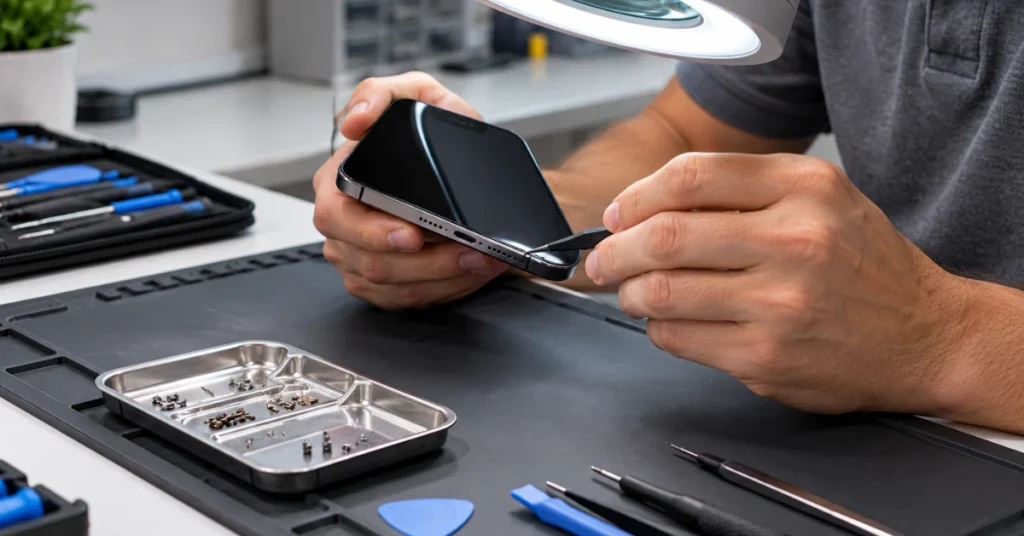
Stop troubleshooting when the phone has had a different cable, a different adapter, a different outlet, and a clean port, and still does not charge. The same applies to a phone that fails every test above. A technician can inspect the port, battery, and internal charging components. These are not beginner repairs, because they involve opening the device.
What to do about a swollen battery
If the screen is lifting, the back is bulging, or the case no longer sits flat, stop using the phone. Do not charge it, press on it, or try to open it. Take it to an Apple Store or Apple Authorized Service Provider, or another qualified technician, as soon as you can.
Repair or replace
A repair may be worth it when the problem is isolated, such as a damaged port. Replacement becomes more reasonable when the phone has several problems, is old, or can no longer get supported updates. Ask the service provider for a written quote that separates parts and labor. Check whether the phone is under warranty or AppleCare first, because unauthorized repairs can affect coverage. Back up the phone before service whenever you can.
Prevent charging problems
- Keep the port clear. Pocket lint is a common cause of poor contact, so avoid carrying the phone loose with other items.
- Replace cables that fray or bend sharply near the connector. Choose certified accessories.
- Avoid charging in hot places such as a parked car or direct sunlight. Apple says very hot conditions can permanently shorten battery life.
- Keep Optimized Battery Charging on unless you have a reason to change it. Apple says turning off charging optimizations can increase battery wear.
Frequently asked questions
Why does my iPhone say it’s charging but the percentage doesn’t rise?
A low-power adapter, a worn cable, or heavy use while charging can cancel out the incoming power. Heat can also slow or stop charging. Try a different adapter and cable, close demanding apps, and let the phone cool. If the problem continues with known-good accessories, have the phone checked.
Is a wooden toothpick safe for cleaning the charging port?
Apple only says to remove debris and does not name a tool. Independent repair sources often suggest a wooden or plastic toothpick, but the contacts are delicate. If you try it, power off first, use light pressure, and avoid metal. If you feel unsure, ask a technician to clean the port.
Can I charge wirelessly if the port is faulty?
Wireless charging works with iPhone 8 and later and can serve as a temporary workaround. Apple recommends a Qi-certified charger and a dry back panel. It does not fix a port problem. Your phone may also feel slightly warm, which Apple says is normal during wireless charging.
How long should I wait before force restarting?
Apple suggests charging for half an hour first. If the screen is still black or shows only a battery icon, force restart and then charge for another half hour. If nothing changes after that, the iPhone likely needs service.
Does a non-Apple cable cause charging problems?
It can. Apple says alerts may appear when an accessory is defective, damaged, or a charger is not designed to charge devices. Use undamaged, certified accessories and test with a different cable before assuming the phone is faulty. Apple also publishes guidance on spotting counterfeit Lightning accessories.
Should I erase my iPhone to fix a charging problem?
No. Apple’s charging guidance does not list erasing the phone as a fix, and it will not repair a damaged port or cable. Erasing deletes your data, so avoid it unless a technician specifically recommends it and you have a backup.
Conclusion
Begin with the safe checks: test another outlet, adapter, and cable, restart the phone, and look for lint in the port. Then charge for 30 minutes, force restart if the screen is black, and charge again. Treat liquid and accessory alerts separately, and remember that stopping at 80 percent can be normal. Seek service if the phone still won’t charge or the battery looks swollen.
Disclaimer
This guide offers general troubleshooting information, and your results may vary by iPhone model and iOS version. Back up your data when possible, and do not open the device, charge a wet or swollen phone, or attempt battery or port repairs yourself. For hardware faults, warranty questions, or safety concerns, contact Apple or another qualified repair provider.
