


If your iPad is stuck on the Apple logo, charge it for up to an hour, then force restart it using the button sequence for your model. If it stays stuck, connect it to a computer, enter recovery mode, and choose Update, not Restore, to try reinstalling iPadOS without erasing your data.
An iPad that stays on the Apple logo, or restarts to the logo again and again, has stopped during startup. This guide helps you work out what to try first, which steps put your data at risk, and when to stop and get professional service.
Key takeaways
- Charge the iPad and check the cable and adapter before anything else. Apple says an unresponsive iPad may need up to an hour of charging.
- A force restart is safe and does not erase your content. The button sequence differs between iPads with and without a Home button.
- In recovery mode, always choose Update first. Restore erases all data on the iPad.
- If the iPad still won’t start, or the computer can’t detect it, the cause may be hardware. Stop and contact Apple or an authorized service provider.
Why an iPad gets stuck on the Apple logo
The Apple logo appears while the iPad loads its operating system. If something interrupts that process, the iPad can freeze on the logo or restart repeatedly. This repeated restarting is often called a boot loop.
Several causes are possible, and you usually can’t tell which one applies from the screen alone:
- A software update or restore that was interrupted or failed
- A very low or depleted battery
- A faulty cable, adapter, or power source
- Corrupted system software
- Unofficial modifications, such as jailbreaking, which some third-party repair sites list as a trigger
- A hardware fault, such as a failing battery or internal component
Treat these as possibilities, not confirmed diagnoses. The steps below start with the safest and least disruptive and move toward more advanced ones.
Check what the screen is doing first
What you see helps you choose the right next step. Watch the screen for a minute or two before pressing any buttons.
- A progress bar under the logo: The iPad may be installing software, such as an update or restore. Leave it connected to power and don’t interrupt it.
- The logo stays for several minutes with no progress bar: Apple lists this as a situation where recovery mode may be needed. Start with the steps below.
- The logo appears, the screen goes black, and the cycle repeats: This is a boot loop. Work through the steps in order.
- A red or blue screen during startup: Apple’s startup guidance covers this alongside the Apple logo, so the same steps apply.
How to fix an iPad stuck on the Apple logo
Work through these steps in order. Stop as soon as the iPad starts normally. After a successful fix, back up your iPad as soon as you can.
Charge the iPad and check the power setup
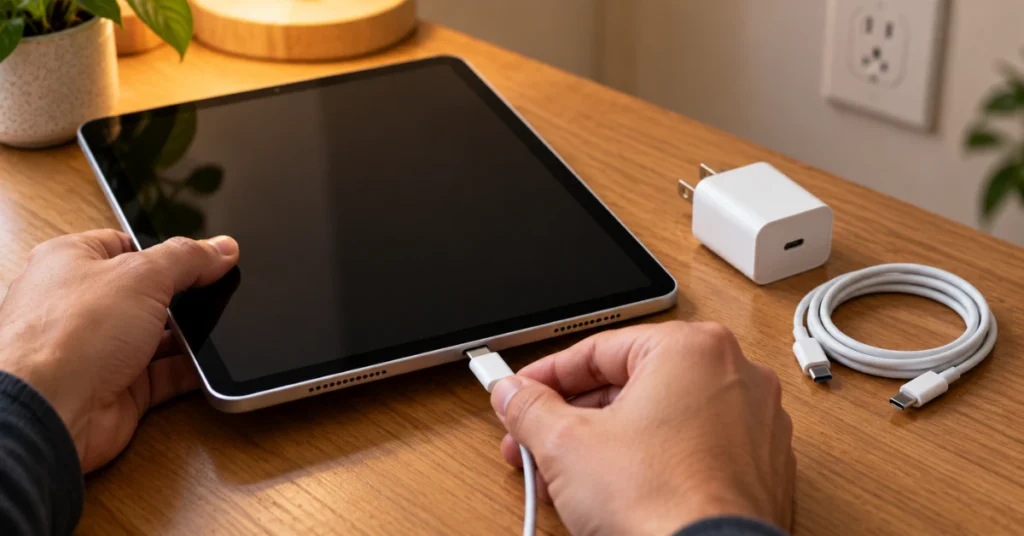
A low battery or a poor power connection can stop an iPad from finishing startup. Charging is safe and reversible, so start here.
- Connect the iPad to a USB charging cable, preferably the one that came with it.
- Plug the cable into a wall adapter connected to a working outlet. Apple recommends the adapter that came with the iPad when possible.
- Leave it charging for up to an hour. Apple notes that some iPads need that long before they respond.
- If nothing changes, try a different cable and a different adapter.
- Make sure the iPad isn’t too hot or too cold. Apple advises keeping it within its acceptable operating temperatures.
If the iPad starts normally, the cable, adapter, or a depleted battery was the likely cause. If the logo only loops while the iPad is plugged in, note that for the troubleshooting table later in this guide.
Force restart the iPad

A force restart restarts a frozen or unresponsive iPad. It is not a reset and does not erase your content. Keep the iPad connected to power while you do it.
iPad without a Home button:
- Press and quickly release the volume button closest to the top button.
- Press and quickly release the volume button furthest from the top button.
- Press and hold the top button until the Apple logo appears, and keep holding until the iPad restarts.
iPad with a Home button:
- Press and hold the Home button and the top button together.
- Keep holding both until the Apple logo appears.
If the iPad reaches the Lock screen or Home screen, the stall was probably temporary. Check for a pending iPadOS update, and back up your iPad before doing anything else.
Update iPadOS in recovery mode

Recovery mode lets a computer reinstall iPadOS. Apple’s startup guidance recommends this step if the iPad turns on but gets stuck on the Apple logo. The Update option attempts to reinstall the software while keeping your data. It cannot guarantee that nothing is lost.
You will need a computer and a working USB cable that carries data, not just power. Use the right software for your computer:
- Mac with macOS Catalina 10.15 or later: Finder
- Mac with macOS Mojave or earlier: iTunes
- Windows PC: the latest Apple Devices app, or iTunes
For an iPad without a Home button:
- Connect the iPad to the computer and open the Finder, Apple Devices app, or iTunes.
- Press and quickly release the volume button closest to the top button.
- Press and quickly release the volume button furthest from the top button.
- Press and hold the top button. Keep holding it past the Apple logo until the recovery-mode screen appears.
For an iPad with a Home button:
- Connect the iPad to the computer and open the Finder, Apple Devices app, or iTunes.
- Press and hold the Home button and the top button together.
- Keep holding both until the recovery-mode screen appears.
When the computer offers Restore or Update, choose Update. The computer downloads the software for your iPad. If the download takes more than 15 minutes, the iPad exits recovery mode. Repeat the steps to enter recovery mode again.
If the update completes, the iPad restarts. If it fails, or the iPad returns to the logo, move to the next step or contact Apple Support.
Restore the iPad as a last software option
Restore reinstalls iPadOS and erases all data on the iPad. Apple advises trying Update first. Only consider Restore if Update fails and you accept losing anything that isn’t backed up.
Before choosing Restore, think about what you have backed up. An iPad stuck on the logo can’t create a new backup, so you can only recover what was saved earlier in iCloud or on a computer. After a restore, you may need your Apple Account details to set the iPad up again, so have them ready.
If you are unsure, contact Apple Support before you erase anything. Data loss can’t be undone.
What if the computer doesn’t recognize the iPad?
If the computer can’t detect the iPad in recovery mode, check the simple causes first.
- Confirm the iPad is actually showing the recovery-mode screen. A normal logo means the button sequence didn’t work.
- Try a different USB cable that supports both data and charging.
- Try a different USB port or a different computer.
- Make sure the computer’s operating system and the Apple Devices app or iTunes are up to date.
- Inspect the iPad’s charging port for lint or debris. Don’t push metal tools into it.
If the iPad never appears on any computer, a hardware problem becomes more likely. That calls for service, not more experimenting.
Differences between iPad models
The main difference is the button sequence. iPads without a Home button use the two-volume-button method. iPads with a Home button use the Home-plus-top-button method. Using the wrong sequence is a common reason a force restart seems to do nothing.
Older iPads may not run the latest iPadOS, and the computer downloads the newest version your model supports. Instructions for iTunes, Finder, and the Apple Devices app depend on your computer’s operating system, as listed above.
When to get professional repair

Stop DIY troubleshooting and contact Apple or an authorized service provider if:
- The iPad stays stuck after a force restart and a recovery-mode Update
- The computer never detects the iPad, even with different cables and ports
- Update or Restore fails repeatedly
- The iPad was dropped, exposed to liquid, or physically damaged before the problem started
- The screen looks lifted, the case looks bulged, or the iPad feels unusually hot while charging
If you see signs of a swollen battery, stop charging and using the iPad. Don’t press on it, puncture it, or try to open it. Get it inspected by a qualified technician.
This guide doesn’t require opening your iPad. Opening it can damage delicate parts, including the battery, and may affect your warranty or coverage. Internal causes, such as the battery, storage, or logic board, can’t be confirmed at home.
Repair or replace the iPad?
Whether to repair or replace depends on practical factors, not on one test result. Consider these:
- Age and software support: An older iPad that no longer gets major updates may not be worth a costly repair.
- Cause: A software fix is usually simpler than a hardware repair.
- Condition: Cracked screens, liquid exposure, or earlier repairs can complicate service.
- Coverage: Check whether the iPad is under warranty or an AppleCare plan.
- Data: If the data is valuable, ask the service provider about options before any erase.
Ask for a written quote before approving paid work.
Troubleshooting table
| Symptom | Possible cause | Recommended next step |
| Apple logo with a progress bar | Software installation in progress | Keep it connected to power and wait |
| Logo stays several minutes, no progress bar | Startup is stalled by software or hardware | Charge, force restart, then recovery-mode Update |
| Logo appears, screen goes black, repeats | Boot loop from software, low charge, or hardware | Charge, force restart, then recovery-mode Update |
| Loops only when plugged in | Power source, cable, adapter, or battery problem | Try a different cable, adapter, and outlet, then seek service |
| Red or blue screen at startup | Startup failure | Follow the recovery-mode Update steps |
| Computer doesn’t detect the iPad | Cable, port, outdated computer software, or hardware | Try another cable, port, or computer, then contact Apple Support |
| Update fails repeatedly | Software or hardware fault | Stop and contact Apple or an authorized provider |
How to reduce the chance of it happening again
Prevention can’t eliminate every cause, but a few habits help.
- Back up the iPad regularly to iCloud or a computer, so a restore doesn’t mean lost data.
- Install iPadOS updates with a good charge or while plugged in, and don’t interrupt them.
- Use Apple or certified chargers and cables.
- Avoid unofficial software modifications, which can interfere with startup.
- Keep the iPad away from extreme heat and cold.
Frequently asked questions
How long should I wait before deciding my iPad is frozen on the Apple logo?
If a progress bar is showing, an update or restore may still be running, so let it finish. Apple lists a logo that stays for several minutes with no progress bar as a sign you may need recovery mode. Charge the iPad first, then try a force restart.
Will I lose my data if my iPad is stuck on the Apple logo?
Not necessarily. Choosing Update in recovery mode tries to reinstall iPadOS while keeping your data, though success isn’t guaranteed. Choosing Restore erases everything. If an Update fails and you must restore, you can only get back what you previously saved in an iCloud or computer backup.
Can charging fix an iPad stuck on the Apple logo?
Sometimes. A depleted battery is one possible cause, and Apple says an unresponsive iPad may need up to an hour of charging. If the logo loops even after a long charge, try a different cable and adapter. If that fails, the cause is probably not the charge level.
Does a force restart delete anything?
No. A force restart restarts the iPad and isn’t an erase or reset option, so it isn’t designed to remove your content. It is the safest step after charging. Use the button sequence for your model, because the wrong one will appear to do nothing.
Should I use third-party iPad repair software?
This guide doesn’t recommend it. Apple’s own instructions for this problem use recovery mode with Finder, the Apple Devices app, or iTunes. Third-party tools can’t be verified here, and some ask you to install software or accept data-loss risks. Try Apple’s methods first, then contact Apple Support.
Is DFU mode better than recovery mode for an iPad stuck on the Apple logo?
For most users, no. Apple’s iPad guidance for this problem uses recovery mode, and its documentation describes DFU as a more advanced mode that works with a computer at a lower level. It isn’t a beginner’s step. If recovery mode fails, contact Apple or an authorized service provider.
Conclusion
Start with charging and a force restart, since both are safe and reversible. If the iPad stays on the logo, use recovery mode and choose Update to try to keep your data. Consider Restore only if Update fails and you understand it erases everything. If the computer can’t detect the iPad, updates keep failing, or the device shows signs of damage or a swollen battery, stop and get professional service.
Disclaimer
This guide is for general information and can’t diagnose your specific iPad. Instructions can vary by iPad model, iPadOS version, and computer software, so check Apple’s current support pages for your device. Restoring an iPad erases its data, so back up whenever possible. For hardware faults, liquid damage, or battery concerns, contact Apple or an authorized service provider.
