

If your Apple Watch battery is draining fast, check Battery Health in Settings first, then restart the watch and keep it near your iPhone. If the drain began after an update, wait a few days. Next, trim Always On, background refresh, and cellular use. If Battery Health says service is needed, contact Apple.
A watch that once lasted all day but now needs a midday charge is frustrating, and the cause is not always the battery. This guide helps you separate software, usage, charging, and wear problems, then fix them from the safest step to the most disruptive.
Key takeaways
- Check Maximum Capacity in Battery Health before changing anything else. It shows whether the battery has aged.
- After a watchOS update, Apple says background tasks can continue for a few days and affect battery life.
- Wi-Fi or cellular on a weak signal, Always On display, background refresh, and speaker audio are common, fixable drains.
- Erase and re-pair the watch only after simpler steps fail, and never open a watch with a swollen or damaged battery.
Work out when and how the drain happens
Fast drain has several different causes, and each leaves a different pattern. Spend a day collecting evidence before you change settings. Otherwise you will not know which change helped.
Run a simple comparison test
Charge the watch fully and note the time and percentage. Wear it normally and note the percentage every few hours. Avoid adding new workouts or apps during the test. Then change one thing, such as turning off Always On (if available), and repeat the test the next day.
What the results suggest:
- Steep drop in the first hours after an update: likely background update activity, not a fault.
- Large drops during workouts, calls, or audio playback: likely heavy use of GPS, sensors, cellular, or the speaker.
- Faster drain when your iPhone is out of range: the watch may be working harder on Wi-Fi or cellular.
- Gradual decline over months with lower Maximum Capacity: probably normal battery aging.
- Rapid drain that persists after every step below: possible hardware fault, which only a technician can confirm.
None of these patterns is proof on its own. Treat them as clues that tell you which section to read next.
Know which watchOS version applies
The menu names below match Apple’s current guidance for watchOS 27. watchOS 27 supports Apple Watch Series 9 and later, Ultra 2 and later, and SE (3rd generation). Older models stay on earlier software, and some labels may differ slightly. Features marked “if available” depend on your model and software version.
Check Battery Health first
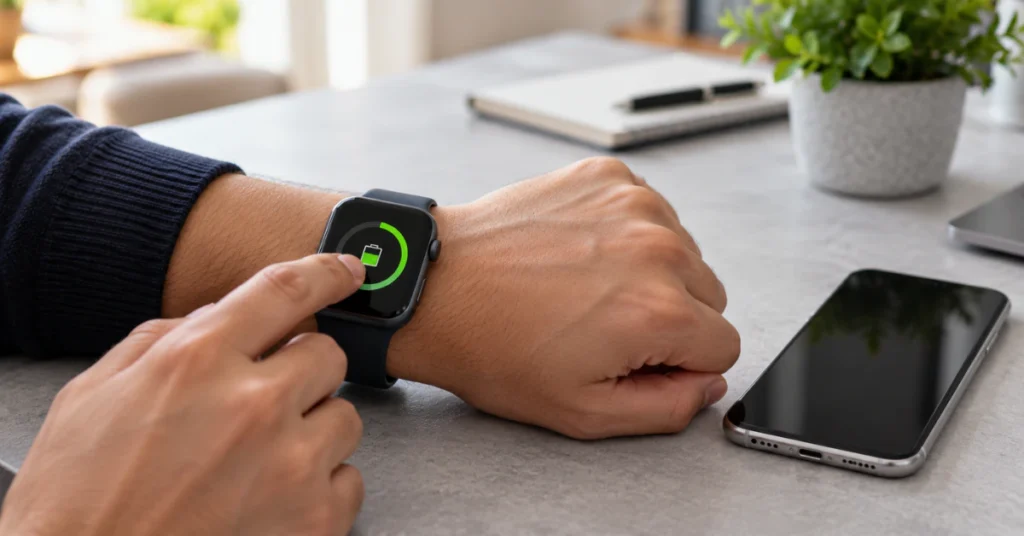
Battery Health tells you whether wear is part of the problem. Open Settings on the watch, tap Battery, tap Battery Health, then scroll to Maximum Capacity. Apple describes this percentage as the battery’s capacity compared with when it was new.
A lower number means less energy per charge, so shorter battery life is expected. A high number does not rule out other causes, because software and usage can still drain a healthy battery. If Battery Health shows a Battery Needs Service message, or you think the battery needs replacing, Apple says to contact Apple Support.
Fixes for Apple Watch battery draining fast
Work through these in order. Each step explains what to do, why it may help, and what to try if it does not.
Restart the watch and your iPhone
A restart clears temporary software glitches. Press and hold the side button until the sliders appear, then drag the Power Off slider. Turn it back on by holding the side button until the Apple logo appears. A watch cannot restart while it is charging.
Restart the paired iPhone too, because the two devices sync constantly. If the watch is frozen or will not power off, hold the side button and Digital Crown together for at least 10 seconds until the Apple logo appears. Use that force restart only as a last resort, and never during a watchOS update.
If the drain continues, move to the next step.
Wait a few days after an update
Apple notes that you can use the watch right after a watchOS update, but related tasks keep running in the background and may affect battery life. If the drain started right after updating, wait a few days and then check again.
If battery life is still poor after several days, continue with the settings below.
Keep the watch connected efficiently
The watch is most efficient with a Bluetooth connection to its paired iPhone. When your phone is out of range, it can use Wi-Fi, or cellular on supported models. Apple says Wi-Fi uses less power than cellular, and both use less power with a strong signal.
- Press the side button to open Control Center.
- Look at the Wi-Fi or cellular icon at the top. More bars mean a stronger signal.
- Where signal is weak or absent for a while, turn on Airplane Mode.
If drain improves only near your iPhone, the connection was likely the cause.
Turn on Low Power Mode
Low Power Mode reduces what the watch does in the background. Press the side button, tap the battery percentage button, and turn on Low Power Mode. Apple lists the Always On display, background heart rate and blood oxygen measurements, and heart rate notifications among the features it turns off.
It switches off automatically when the watch charges above 80 percent, unless you chose a number of days. Because it limits health monitoring, use it as a temporary measure. If you only want to stop Always On, use the next step instead.
Turn off Always On, if available
On models with Always On, the display uses power even when your wrist is down. Open Settings, tap Display & Brightness, tap Always On, then switch it off. Compare your next-day test results. If battery life does not change, turn it back on.
Check background refresh and the Extending Battery notice
On watchOS 27, the watch can pause rarely used features automatically and show an Extending Battery notification. Tapping Settings in the notification takes you to the paused feature. You can turn it back on there.
You can also reduce background activity in Settings > General > Background App Refresh (if available). Turn it off for individual apps you do not need. Apple notes that apps with complications on the current watch face keep refreshing, so also check which complications your face uses.
Adjust workout and audio habits

Long outdoor workouts use GPS and heart rate sensors heavily. On supported models, open Settings, scroll to Workout, and tap Fewer GPS and Heart Rate Readings. Apple says this works with Low Power Mode on outdoor walking, running, and hiking workouts. It is available on Apple Watch SE (2nd generation), Series 8 and later, and Ultra models, with watchOS 9.1 or later.
Playing audio through the built-in speaker also drains the battery faster. Apple recommends AirPods or another Bluetooth audio device instead.
Review battery optimization settings
Optimized Battery Charging and Optimized Charge Limit (on supported models) help preserve long-term battery health. Apple says you can turn them off temporarily when you need maximum runtime. Open Settings > Battery > Battery Health, switch the feature off, then choose Turn Off Until Tomorrow or Turn Off.
Apple warns that turning off Optimized Charge Limit can increase battery wear. On Apple Watch SE, Series 6, Series 7, and Series 8, turning off Optimized Battery Charging also turns off Optimized Charge Limit. Turn the features back on afterward unless you have a specific reason not to.
Check the charging setup
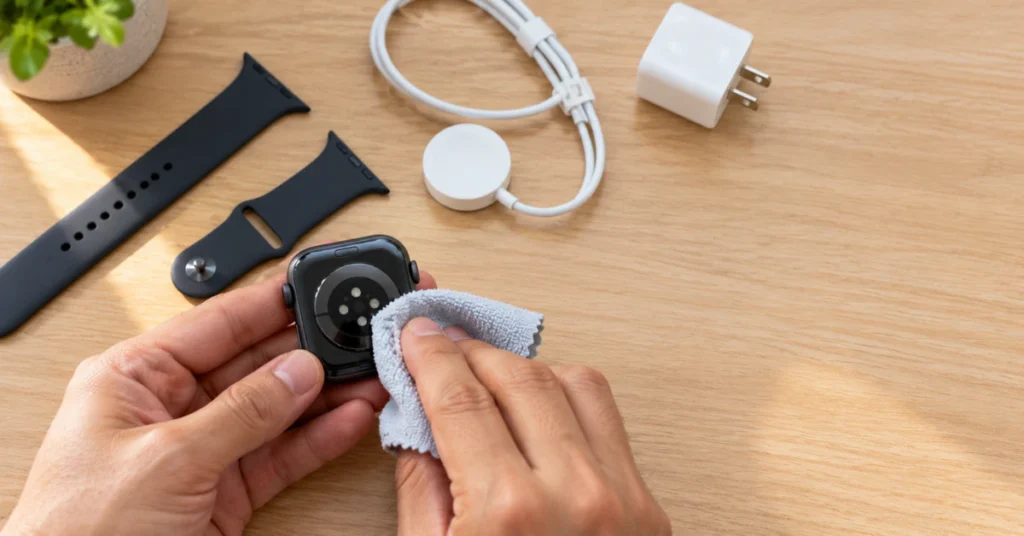
Poor charging can feel like fast drain because the watch never fills properly. Remove any plastic wrap from both sides of the charger. Clean and dry the back of the watch and the magnetic charger. Position the watch so the magnets align, and look for the green or yellow lightning bolt on the display. If you use a third-party charging stand, try the cable that came in the box.
If the watch still will not charge normally, force restart it as described above. Stop using any charger or cable that looks burned, cut, or damaged.
Erase and set up the watch again
This is the last software step, because it removes everything from the watch. Some people report improvement after unpairing and restoring, but results vary and it cannot repair a worn battery.
- Keep the watch and iPhone close together.
- On the iPhone, open the Watch app, tap the info button next to your watch, then tap Unpair Apple Watch.
- Choose whether to keep your cellular plan if you will re-pair, and enter your Apple Account password if asked.
- Set the watch up again and restore from the backup.
Apple says the iPhone creates a new backup before erasing the watch. If you use a transit card in Wallet, follow Apple’s instructions to remove it first. Do not insert anything into the small holes in the case. They are not reset buttons.
If battery life is still poor after this, a hardware cause becomes more likely.
When the battery itself is the problem
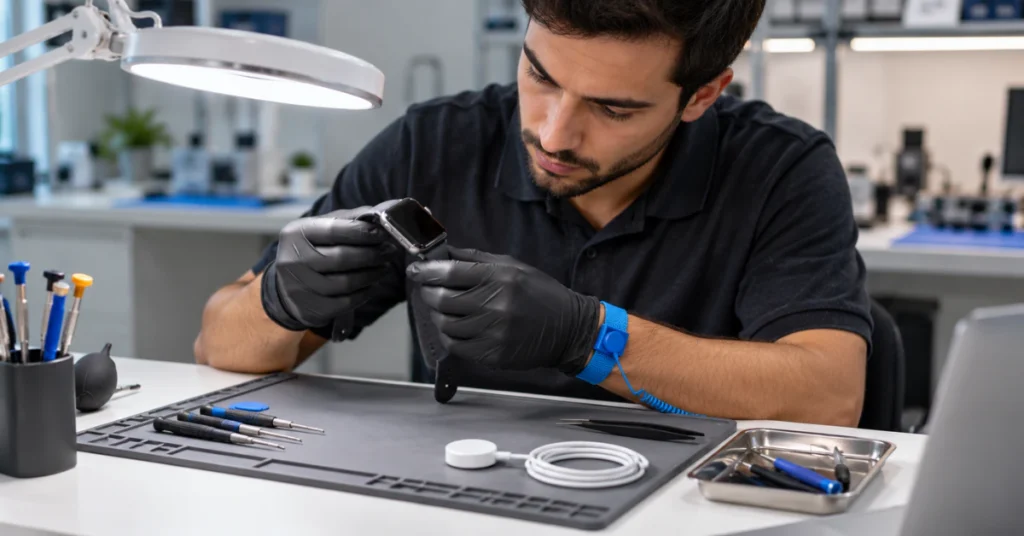
Apple Watch batteries wear out like all rechargeable batteries. Signs include a low Maximum Capacity, a Battery Needs Service message, and fast drain that survives every step above.
Repair or replace the watch
For most people, a battery replacement through Apple or an Apple Authorized Service Provider is the practical route. Apple says its certified service uses genuine Apple parts and guarantees service and replacement parts for 90 days or the remainder of your Apple warranty, whichever is longer. Costs vary by model and region, so get an estimate before deciding.
Coverage matters here. Apple’s limited warranty covers manufacturing defects for one year. AppleCare+ terms for Apple Watch include battery service when capacity falls below 80 percent, though terms vary by region and plan. Check your coverage with Apple before paying for a repair. An older watch that no longer receives major software updates may still be worth a new battery if it meets your needs.
Why DIY battery replacement is not beginner work
Apple Watch cases are sealed. Opening one can damage seals and adhesive, reduce water resistance, and may affect coverage. Batteries are also a fire and injury risk if punctured or bent. Treat DIY battery replacement as a task for qualified technicians.
As a general precaution, stop charging and using the watch if the display lifts, the case separates, or the watch becomes unusually hot. Do not open, press on, or heat it. Contact Apple Support or an authorized provider.
Troubleshooting table
| Symptom | Possible cause | Recommended next step |
| Drain began right after a watchOS update | Background update tasks | Restart both devices, wait a few days, then re-test |
| Big drops during long outdoor workouts | GPS, heart rate sensors, speaker audio, cellular | Use Fewer GPS and Heart Rate Readings (if available), play audio through AirPods |
| Faster drain away from your iPhone | Weak Wi-Fi or cellular signal | Use a strong Wi-Fi network, or Airplane Mode in poor coverage |
| Battery life worsening over months | Normal battery aging | Check Maximum Capacity, then contact Apple if service is shown |
| Watch charges slowly or inconsistently | Dirty contacts, misalignment, damaged cable | Clean and realign, try the supplied cable, force restart if needed |
| Display or case lifting, or unusual heat | Possible battery damage (cannot be confirmed at home) | Stop using it and seek professional service; do not open it |
| Still draining after restart, settings, and erase | Possible hardware fault | Contact Apple Support or an authorized provider |
Habits that help battery life last
Small routines protect both daily runtime and long-term capacity:
- Leave Optimized Battery Charging on, and turn it off only for days when you need maximum runtime.
- Use Wi-Fi when away from your phone, and Airplane Mode where coverage is poor.
- Review which apps and complications refresh in the background every few months.
- Install watchOS updates, and judge battery life only after the first few days.
Frequently asked questions
Why is my Apple Watch battery draining fast all of a sudden?
A sudden change often follows a watchOS update, a new app, a changed setting, or heavier cellular and workout use. Apple says update-related background tasks can run for a few days. Check Battery Health, restart the watch, and review recent changes. If the drop continues after several days, work through the later steps.
How long should I wait after a watchOS update before worrying?
Apple suggests waiting a few days and then checking again, because tasks related to the update continue in the background. Charge the watch as usual and avoid judging battery life from a single day. If drain is still unusual afterward, review Battery Health, connectivity, Always On, and background refresh.
What Maximum Capacity percentage means I need a new battery?
There is no single number that applies to everyone. Apple’s AppleCare+ terms cover battery service below 80 percent capacity, but eligibility depends on your plan and region. Apple also says to contact Apple Support if Battery Health shows Battery Needs Service. Lower capacity explains shorter runtime but does not rule out other causes.
What does Low Power Mode turn off?
Apple lists the Always On display, background heart rate and blood oxygen measurements, and heart rate notifications among the features it turns off. Other features run less often, and more are limited when your iPhone is not nearby. It turns off automatically above 80 percent charge unless you set a number of days.
Will erasing and re-pairing fix battery drain?
It can help when the cause is software, but it cannot restore a worn battery, and results vary. Unpairing erases the watch, and your iPhone creates a backup first. Try simpler steps before using it, and follow Apple’s instructions for removing transit cards from Wallet if you have one.
Can I replace the Apple Watch battery myself?
It is not recommended for beginners. The case is sealed, and opening it can damage seals and adhesive, harm water resistance, and may affect coverage. A damaged battery is also a safety risk. Use Apple or an Apple Authorized Service Provider for battery service, and stop using any watch showing swelling or heat damage.
Does fast battery drain mean my watch is faulty?
Not necessarily. Weak signal, workouts, speaker audio, recent updates, and battery age can all shorten runtime without any fault. A hardware problem becomes more likely when drain stays abnormal after restart, update, settings review, and erase and restore, or when Battery Health shows service is needed. A technician must confirm it.
Conclusion
Start with Battery Health, a restart, and a few days of patience if you recently updated. Then reduce the usual drains: weak connections, Always On, background refresh, speaker audio, and heavy workout tracking. Use erase and restore as a late step, after backing up. Contact Apple Support or an authorized provider if Battery Health shows service is needed, drain persists, or the watch shows swelling or unusual heat.
Disclaimer
This guide offers general troubleshooting based on Apple’s published support guidance and cannot diagnose your specific watch. Menu names, features, and coverage terms can vary by model, watchOS version, and region, so confirm details with Apple. Back up your data before erasing a watch, and use qualified service for hardware repairs.
