


If your iPad says “iPad is disabled, connect to iTunes,” the usual fix is to erase it. Try Forgot Passcode? or Erase iPad on the lock screen first, if either appears. Otherwise, connect the iPad to a Mac or PC, enter recovery mode, and choose Restore. This deletes everything, so restore from a backup afterward.
This message appears after too many wrong passcode attempts. It is a security lock, not a sign of a broken iPad. This guide explains which fix applies to your iPad and what to do if a step fails.
Key takeaways
- Apple’s documented methods for a forgotten passcode erase the iPad. Only an existing iCloud or computer backup can bring your data back.
- Start with the least disruptive option: wait out any countdown, try Passcode Reset if you changed your passcode recently, or erase the iPad from its own lock screen.
- If no on-screen option appears, use a Mac (Finder) or a Windows PC (Apple Devices app) with recovery mode.
- Have your Apple Account email and password ready. You may need them during or after the reset.
What the “iPad is disabled” message means
An iPad disables itself when someone enters the wrong passcode too many times. This protects your data from anyone guessing the code. The lock is working as designed.
The wording depends on your software version. Older versions show “iPad is disabled, connect to iTunes.” Newer versions typically show “iPad Unavailable” or a Security Lockout screen. Note the exact wording on your screen, because the available fixes differ.
Disabled, unavailable, or just waiting
Look closely at the screen. If you see a countdown such as “Try again in 1 minute,” the iPad is temporarily locked. You can wait and try again with the correct passcode.
If there is no countdown and the screen only tells you to connect to a computer, waiting will not help. The iPad needs to be erased and set up again.
Typical causes
- Repeated wrong guesses after forgetting the passcode
- Forgetting a recently changed passcode
- A child or another person tapping the lock screen repeatedly
- Entering the code on a worn or unresponsive screen, which can register wrong digits
Check these things before you erase the iPad
Erasing is permanent. A few quick checks can save your data or save you a longer process.
- Look for a countdown. If one is showing and you know the passcode, wait for it to finish. Then type the code slowly and carefully. Each further wrong attempt can lead to a longer wait.
- Think about a recent passcode change. On iPadOS 17 or later, Passcode Reset lets you use your old passcode for 72 hours after you change it. Tap Forgot Passcode?, then tap Enter Previous Passcode. Apple says this option appears only when you are locked out, connected to Wi-Fi or cellular, signed in to your Apple Account, and have Find My turned on.
- Check your backups. If the iPad backed up to iCloud or a computer before the lockout, you can restore after the reset. A locked iPad generally cannot make a new backup, so any data created since the last backup will be lost.
- Confirm your Apple Account details. You may need the email and password later. If you have forgotten them, recover them before you erase anything.
- Gather what you need. You will want a charged iPad, a cable that can charge it, and a stable internet connection.
How to fix an iPad that is disabled and says connect to iTunes
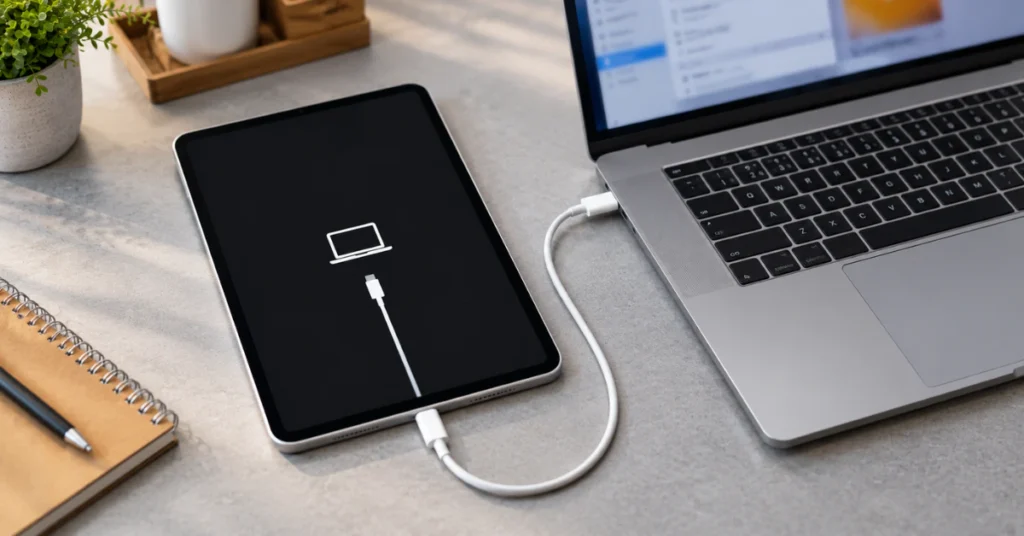
Every method below erases the iPad. They are listed from least to most involved. Choose the first one that applies to your screen.
Option 1: Erase the iPad from the lock screen
This works only if the iPad is on iPadOS 15.2 or later. It also needs a Wi-Fi or cellular connection, a signed-in Apple Account, and Find My turned on.
On iPadOS 17 or later:
- On the Lock Screen, keep entering a passcode until the “iPad Unavailable” screen appears.
- Tap Forgot Passcode? when it appears.
- On the Security Lockout screen, tap Start iPad Reset.
- Enter your Apple Account password to sign out of the account on the iPad.
- Tap Erase iPad to delete all data and settings.
- When the iPad restarts, follow the setup screens. Restore from a backup if you have one, and set a new passcode.
On iPadOS 15.2 or 16, an Erase iPad option appears under the same conditions. If you see no such option, move to Option 2.
Option 2: Reset with a Mac or Windows PC in recovery mode

Apple says this process can take up to 60 minutes. You need a Mac or Windows PC, a cable that can charge the iPad, and an internet connection.
- Unplug the iPad from the computer if it is connected.
- Turn off the iPad. On models without a Home button, hold one volume button and the top button together until the power-off slider appears. On models with a Home button, hold the top button until the slider appears.
- Drag the slider, then wait a minute so the iPad shuts down fully.
- Connect the iPad to the computer with the USB cable.
- Keep it connected and press the buttons for your model:
- No Home button: Press and quickly release the volume button closest to the top button. Press and quickly release the volume button farthest from it. Then press and hold the top button.
- With a Home button: Press and hold the Home button and the top (or side) button together.
- Keep holding through the Apple logo. Release only when an image of a computer and a cable appears.
- If the passcode screen appears instead, turn the iPad off and start again.
- On a Mac, find the iPad in Finder. On a Windows PC, find it in the Apple Devices app. Older Macs running macOS Mojave or earlier use iTunes.
- When you see Restore or Update, choose Restore. The computer downloads the software and begins the process.
- Wait until the Hello screen appears on the iPad. Then disconnect it and set it up.
If the download takes more than 15 minutes and the iPad leaves the recovery screen, let the download finish. Then turn the iPad off and repeat the button steps.
Option 3: Erase remotely with Find My, if available
If Find My was on and the iPad is online, you may be able to erase it from another device. Apple’s earlier instructions mention iCloud.com for this. Sign in with the Apple Account used on the iPad, select the iPad, and choose Erase This Device.
This also deletes all data. It will not work if the iPad is offline or Find My was never enabled.
If the computer does not see the iPad or recovery mode fails
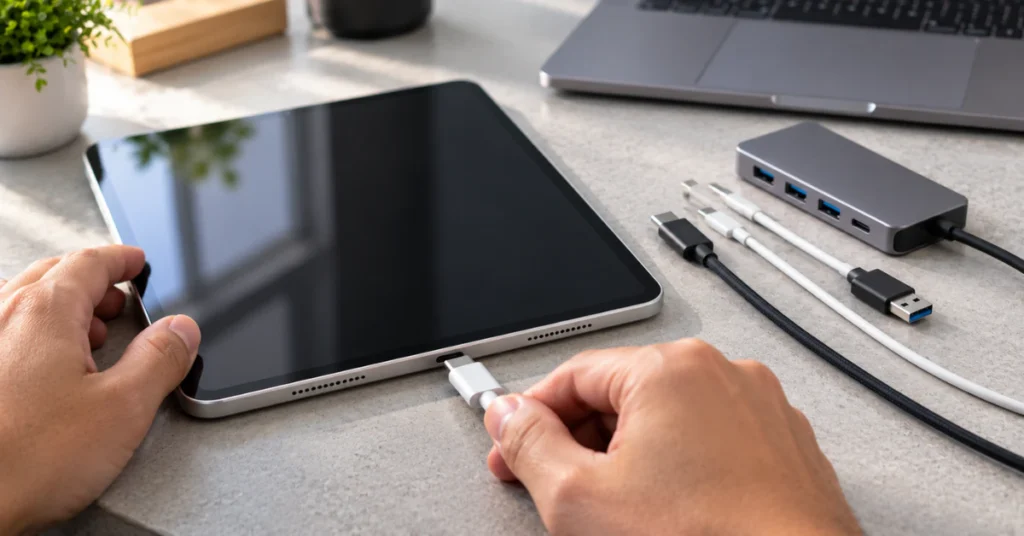
A failed attempt usually points to a cable, port, software, or timing issue. It rarely points to a hardware fault. Work through these checks in order:
- Try a different cable. Use one that can charge the iPad and is known to work. Charge-only or damaged cables are a common cause of detection problems.
- Try another USB port or computer. If possible, avoid hubs and use a port directly on the computer.
- Restart the computer and check for updates. On Windows, make sure the Apple Devices app is installed and current.
- Repeat the button sequence slowly. Timing matters. If you see the passcode screen, power off completely and begin again.
- Let long downloads finish. Do not unplug the iPad while the computer is downloading or restoring.
If the buttons do not respond and you cannot reach the recovery screen, Apple says the iPad may need service.
What to expect after the reset
When the process finishes, the iPad shows the Hello screen. Follow the setup prompts, then restore from your most recent iCloud or computer backup if you have one. Set a new passcode that you can remember.
If Find My was on before the erase, setup may ask for the Apple Account that was signed in. This is Activation Lock, which protects lost or stolen devices. Use the original account’s credentials. If you bought the iPad second-hand and cannot sign in, the previous owner must remove it from their account.
When to get professional help

A disabled message on its own does not indicate a hardware fault, so there is no reason to open the iPad or replace parts. Consider an Apple Store or Apple Authorized Service Provider in these cases:
- You do not have a computer and cannot borrow one.
- The buttons do not work, so recovery mode is out of reach.
- Recovery mode works but the computer never recognizes the iPad after trying a different cable and computer.
- Setup asks for an Apple Account you cannot recover.
Be cautious with services that promise to bypass the passcode while keeping your data. Apple’s documented methods all erase the device. Ask what the process involves before handing over the iPad or your account details.
How to avoid a lockout next time
- Back up the iPad regularly to iCloud or a computer.
- Keep Find My turned on, since the on-screen erase option depends on it.
- Choose a passcode you can recall, and keep your Apple Account recovery details current.
- Keep the iPad away from young children while it is on the lock screen.
Troubleshooting table
| Symptom | Possible cause | Recommended next step |
| Countdown timer shown | Repeated wrong passcode attempts | Wait for the timer, then enter the correct passcode carefully |
| “Connect to iTunes” with no timer | Lockout on older software | Erase with a computer in recovery mode, or use Find My |
| Forgot Passcode? appears | iPadOS 17 or later, online, Find My on | Try Passcode Reset if you changed the code within 72 hours; otherwise Start iPad Reset |
| Erase iPad appears | iPadOS 15.2 or 16 with the required conditions | Use the on-screen erase and sign in with your Apple Account |
| No on-screen erase option | Offline, Find My off, or older software | Use a Mac or PC in recovery mode |
| Passcode screen shows after the button steps | Button timing or hold was off | Power off fully and repeat the sequence |
| Computer does not detect the iPad | Cable, port, or software problem | Try another cable, port, or computer; update the software |
| iPad leaves recovery mode during download | Download exceeded 15 minutes | Let the download finish, power off, and start again |
| Setup asks for an Apple Account | Activation Lock | Sign in with the original account or recover its credentials |
Frequently asked questions
Can I fix a disabled iPad without losing my data?
Usually not. Apple’s documented methods for a forgotten passcode erase the iPad, so only an existing backup in iCloud or on a computer can bring data back. If you actually remember the passcode, wait out any timer and enter it carefully. On iPadOS 17 or later, Passcode Reset may also work within 72 hours of a change.
Do I need iTunes to fix a disabled iPad?
The message still mentions iTunes, but Apple’s current instructions point to Finder on a Mac and the Apple Devices app on a Windows PC. Older Macs running macOS Mojave or earlier use iTunes. If Forgot Passcode? or Erase iPad appears on the iPad itself, you do not need a computer.
What if I do not have a computer?
Borrow one from a friend or family member. Recovery mode works with a Mac or Windows PC, and Apple does not say it must be the computer you used before. If that is not possible, Apple recommends visiting an Apple Store or Apple Authorized Service Provider for help.
How long does resetting a disabled iPad take?
Apple says to allow up to 60 minutes. The computer must first download software for the iPad, and a slow connection can stretch that time. If the download takes more than 15 minutes and the iPad leaves the recovery screen, let the download finish. Then turn the iPad off and repeat the button steps.
Will I need my Apple Account password?
Often, yes. The on-screen erase option asks for your Apple Account password. After any reset, Activation Lock may ask for the account that was signed in before the erase. Make sure you can sign in before you start. A second-hand iPad tied to someone else’s account needs that person to remove it.
Will waiting fix a disabled iPad?
Only if a countdown is showing and you know the passcode. When the timer ends, you can try again, but more wrong guesses can bring longer waits. If the screen shows no timer and only tells you to connect to a computer, waiting will not change anything. You will need one of the erase methods.
Conclusion
A disabled iPad is a security lock, and Apple’s documented ways around it all involve erasing the device. Check for a countdown first, then try Passcode Reset or the on-screen erase option if your software offers them. If those options are missing, use recovery mode with a Mac or PC. Visit an Apple Store or Authorized Service Provider if you have no computer, the buttons fail, or Activation Lock blocks setup.
Disclaimer
This guide is general information for Apple iPads and may not match every model or software version. Resetting an iPad permanently deletes its data, so back up whenever possible and confirm your Apple Account details first. If you are unsure at any step, contact Apple Support or an Apple Authorized Service Provider.
