


If your MacBook screen is black, first check whether the Mac is actually running. Force it off by holding the power button for up to 10 seconds, confirm power and charger, unplug accessories, then restart. If the screen stays black, try macOS Recovery and test an external display to separate software faults from display hardware.
A black screen can mean the Mac is off, stuck during startup, or running with a display that shows nothing. This guide helps you tell those cases apart, then walks through safe fixes in order from least to most risky.
Key takeaways
- Work out whether the Mac is on or off before changing anything. Fans, startup sounds, and a lit keyboard are clues, not proof.
- Start with reversible steps: power checks, a forced restart, and unplugging accessories.
- An external display test helps separate a macOS or startup problem from a built-in display problem.
- Stop and get service if Recovery will not load, the case is swollen, or liquid has touched the Mac.
What a MacBook black screen can mean
A black screen is a symptom, not a diagnosis. Several different faults look identical at first glance, and each calls for a different next step.
Apple notes that a blank screen in black, gray, or blue is normal for a moment during startup. It only becomes a problem if the Mac stays stuck there.
The Mac is running but the display is dark
You might hear fans, a startup chime, or see a backlit keyboard while the screen stays black. That points toward a display, brightness, or video problem, though it does not prove which one. A software fault can also leave the screen blank.
The Mac seems completely off
If nothing happens at all, the issue may be power, the charger, or a hardware fault. Apple treats “Mac doesn’t turn on” and “Mac turns on to a blank screen” as separate problems with separate steps.
The screen goes black during startup or after an update
If the Mac starts but never reaches the login window, startup software or the startup disk may be involved. Recovery tools are the right place to look. They help narrow this down, but a single result does not confirm the cause.
Fix a MacBook black screen step by step
Work through these in order. Stop as soon as the screen returns, then back up your data if you can.
Step 1: Check power and the charger
Make sure the power cable is undamaged and plugged firmly into the Mac and a working outlet. If you have another compatible cable or adapter, try it. A charger that looks fine can still be faulty.
If the screen returns, the problem is power. If not, move on.
Step 2: Raise brightness and wake the display
Press the Brightness Up key on your keyboard, if available. Close the lid for a few seconds, then reopen it to wake the display. A dimmed screen can look black in a bright room.
If you see a faint image, note it. That detail matters in the flashlight section below.
Step 3: Force the Mac off and on
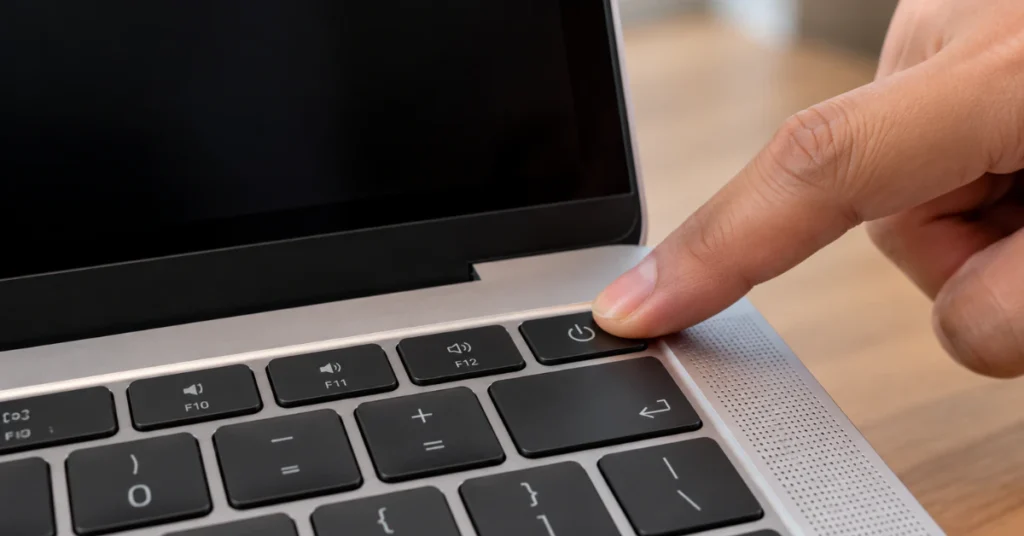
Press and hold the power button for up to 10 seconds until the Mac turns off. On models with Touch ID, press the Touch ID button down firmly rather than touching it lightly. Then press and release the power button to start it again.
This is safe and does not erase data. It does interrupt any unsaved work, so use it only when the Mac is unresponsive.
Step 4: Unplug accessories
A faulty accessory or cable can interfere with startup. Disconnect printers, drives, USB hubs, and phones, then repeat Step 3. Reconnect items one at a time later to find the culprit.
Step 5: Test with an external display

Connect a known-good external display and keep the MacBook lid open for the first test. Check that the display has power and is turned on.
- Picture appears on the external display only: The Mac is likely running, and the built-in display or its connection becomes a stronger suspect. This is a lead, not a confirmed fault.
- Both screens stay black: The problem may be with startup, firmware, or the Mac itself. Continue below.
If the external display itself stays dark, check its cables and brightness. Apple also notes that docks and unsupported adapters can cause this, so plug directly into the Mac if possible.
Step 6: Run Apple Diagnostics
Apple Diagnostics tests internal hardware. It is read-only and does not change your data. Place the Mac on a hard, flat surface first.
- Shut down the Mac. Force it off with the power button if needed.
- On a Mac with Apple silicon, press and hold the power button until startup options load, then press and hold Command-D.
- On an Intel-based Mac, press the power button, then immediately press and hold D.
- Follow the onscreen instructions and note any reference code.
A reported fault gives you something concrete to show a repair provider. A clean result does not rule out every hardware problem, and Apple says it does not check for macOS or software problems.
Step 7: Start up from macOS Recovery
Recovery is Apple’s built-in toolset for repairing or reinstalling macOS. Getting into it tells you a lot, because it runs separately from your normal macOS installation.
Apple silicon Mac:
- Turn the Mac off. Hold the power button until you see “Loading startup options” or the Options icon.
- Click Options, then Continue.
- If asked, choose your startup disk and enter your login password.
Intel-based Mac:
- Turn the Mac off, then press and release the power button.
- Immediately press and hold Command-R until you see an Apple logo or spinning globe.
- If asked, choose a Wi-Fi network or connect a network cable.
If you are unsure which type you have, Apple says you can safely try both methods. On an Intel Mac laptop, use the built-in keyboard, because external keyboards may not register in time.
Step 8: Repair the startup disk with Disk Utility
If Recovery loads, open Disk Utility and run its repair tool on your startup disk, then restart. This checks the disk’s structure and does not erase your files.
If the Mac still starts with a black screen, boot into Recovery again. Then reinstall macOS from the Recovery window. Reinstalling is a bigger step than a repair, so back up first if you can reach your files.
Step 9: Revive or restore firmware (Apple silicon and T2 Macs)
Apple says a Mac with Apple silicon or the T2 Security Chip can rarely need its firmware revived or restored. This can happen after a power failure interrupts a macOS installation. Use it only if Recovery will not load and a blank screen persists.
You need a second Mac running macOS 14 or later and a USB-C cable that supports data and charging. Apple advises against Thunderbolt 3 cables for this.
- Put the affected Mac into DFU mode, following Apple’s steps for your model.
- In the Finder window on the second Mac, choose Revive Mac first. It does not erase your Mac.
- Choose Restore Mac only if reviving fails. Restore erases the Mac and returns it to factory settings, so treat it as destructive.
Key timing matters in DFU mode. If you are not comfortable with this, book service instead.
Step 10: Reset the SMC (Intel-based Macs only)
If your Mac does not turn on at all and it is an older Intel model, resetting the SMC may help. Apple says you do not need to do this on a Mac with Apple silicon. Use Apple’s SMC reset instructions for your exact model.
The flashlight test and what it can show
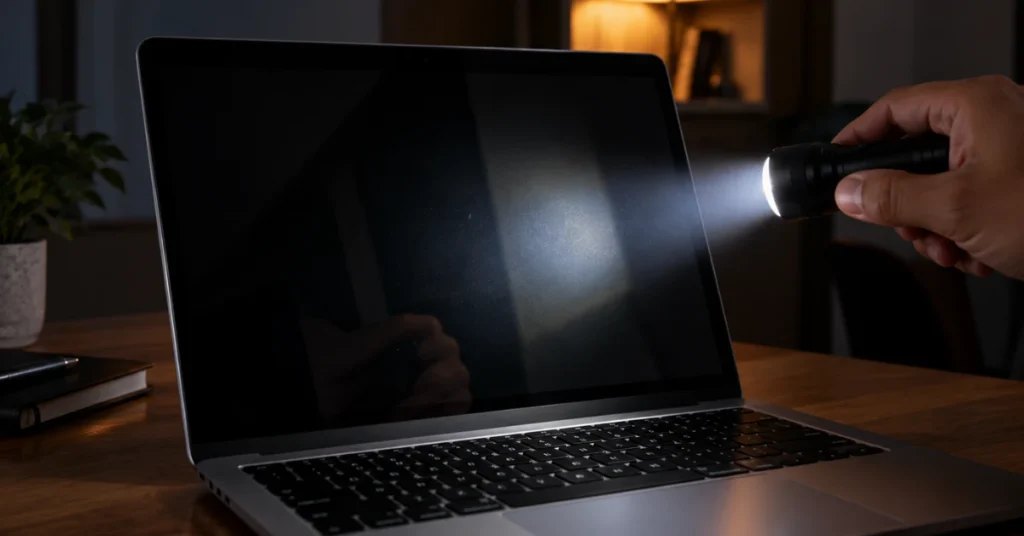
This is independent technician guidance, not an official Apple procedure. Use it only as a clue.
If the Mac is running but the screen looks black, move to a dim room. Shine a bright flashlight close to the screen and look for a faint image, such as the login window.
A faint image suggests the panel is still drawing a picture but the backlight is not lighting it. That points toward a display or backlight fault, but it cannot confirm the exact part. Nothing visible does not prove the opposite either.
Either way, this is a result to report to a technician, not a repair for you to attempt.
When to stop and get professional repair
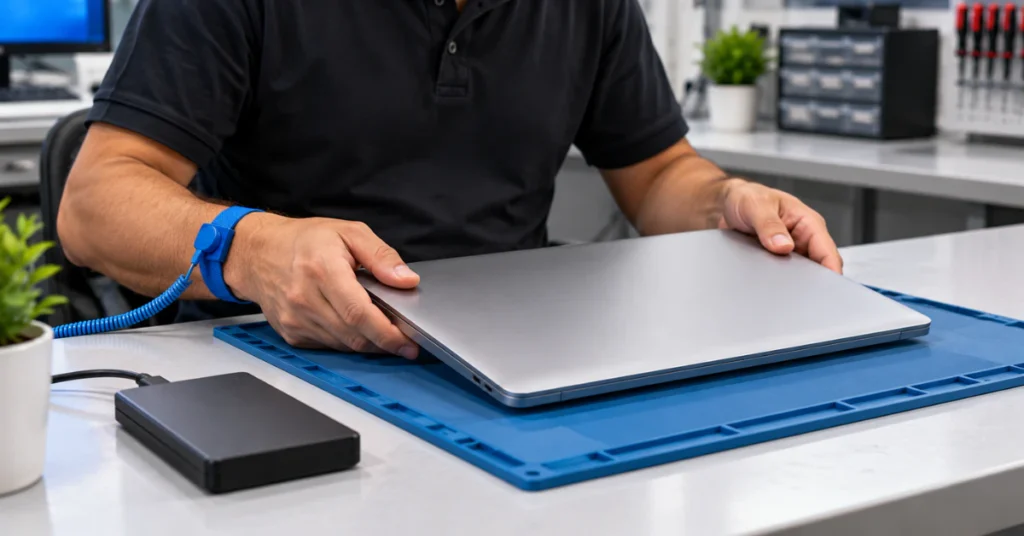
Stop the DIY steps and contact Apple or a qualified repair provider if any of these apply:
- The Mac will not enter Recovery and an external display also shows nothing.
- Revive and restore fail or you cannot complete DFU mode.
- Apple Diagnostics reports a hardware fault.
- The Mac was dropped, bent, or exposed to liquid. Power it off and keep it unplugged.
- The case or trackpad looks swollen or lifted. Stop using the Mac and do not charge it. Never press on, puncture, or open a swollen battery.
Opening a MacBook risks electrostatic damage, battery hazards, and warranty problems. Black-screen repairs inside the case are not beginner work.
Repair or replace a MacBook with a black screen
The right choice depends on the actual fault, which you may not know until a technician tests it. A software or startup problem is often recoverable. A display or logic board fault is a different case.
Weigh the device’s age, whether it is under warranty or AppleCare, and how important your unsaved data is. Ask for a written diagnosis and quote before approving work. Compare that quote against what a comparable replacement would cost you.
Troubleshooting table
| Symptom | Possible cause | Recommended next step |
| No lights, sounds, or charger response | Power or charger fault | Try another outlet and compatible charger, then hold power for 10 seconds |
| Fans or chime, black screen | Display, brightness, or startup issue | Raise brightness, test an external display, try Recovery |
| Image on external display only | Built-in display or connection issue | Report this to a technician; avoid opening the Mac |
| Black after update or interrupted install | Startup software or firmware issue | Try Recovery, Disk Utility, then reinstall macOS |
| Recovery will not load, blank screen persists | Firmware or hardware issue | Revive or restore with a second Mac, or book service |
| Faint image under flashlight | Possible backlight fault | Seek professional service |
Prevent a black screen from becoming data loss
Back up with Time Machine regularly so a failed startup does not put your files at risk. Install macOS updates while the Mac is on a charger and avoid interrupting them, since Apple links power failures during installation to firmware problems. Keep vents clear and use the Mac on a hard, flat surface.
Frequently asked questions
Why is my MacBook screen black but the Mac still seems on?
It can mean a display, backlight, brightness, or startup problem. Sounds and lights show the Mac has some power, not that macOS has loaded. An external display test and Recovery help narrow it down. Neither gives a certain answer on its own.
Will force restarting a MacBook erase my data?
Holding the power button for up to 10 seconds turns the Mac off and does not erase files. Unsaved work in open apps can be lost. Use it only when the Mac is unresponsive, then restart normally afterward.
Is reinstalling macOS the same as erasing my Mac?
No. Reinstalling macOS from Recovery is a different action from erasing the disk or restoring firmware. Still, back up first if you can reach your data. A Restore in DFU mode does erase the Mac, so treat it differently.
How do I know if the problem is the screen or the logic board?
You usually cannot tell without testing. A picture on an external display and a faint image under a flashlight both point toward the built-in display. They are clues rather than proof. Apple Diagnostics and a technician’s inspection give firmer answers.
Should I reset the SMC on my MacBook?
Only on an older Intel-based Mac that will not turn on. Apple says Macs with Apple silicon do not need it. Check which type you have, then follow Apple’s model-specific instructions.
When should I take a black-screen MacBook to a repair shop?
Go when Recovery will not load, Diagnostics reports a fault, or the Mac has liquid or physical damage. Also go if the case looks swollen. Ask for a written diagnosis before approving any repair.
Conclusion
Start by working out whether the Mac is running, then use safe steps in order: power checks, a forced restart, an external display test, Diagnostics, and Recovery. Use Disk Utility and a macOS reinstall only after backing up where possible. Firmware revive or restore is a late-stage option, and Restore erases the Mac. Get professional service if Recovery fails, hardware faults appear, or you see liquid damage or a swollen case.
Disclaimer
This guide is general information and cannot diagnose your specific MacBook. Steps vary by model and macOS version, and some actions can interrupt work or erase data, so back up first when possible. If your Mac is under warranty, has liquid damage, or you are unsure at any stage, contact Apple or a qualified repair professional.
